Episode 2 · Resources
AI Agents, Explained From Zero
Everything from the video in one place: what an agent actually is, how it loops, remembers and stays inside your rules, how to set up Claude Code step by step, and the exact instructions for your first agent.
Links
Use the official pages, so you're always installing the real thing.
What an agent is, in plain English
An agent is the AI, plus tools, plus a loop. Everything else is details.
It guesses what comes next
It learned by reading a huge amount of writing, and got very good at one thing: given everything so far, write the next word that makes the most sense. One word at a time.
Two things to remember: it only knows what it read plus what you show it, and it's always guessing. Usually right, sometimes wrong, and just as sure either way.
Its hands
A chatbot can only talk. A tool is anything the AI is allowed to use: search your inbox, open a spreadsheet, check your calendar, write a file.
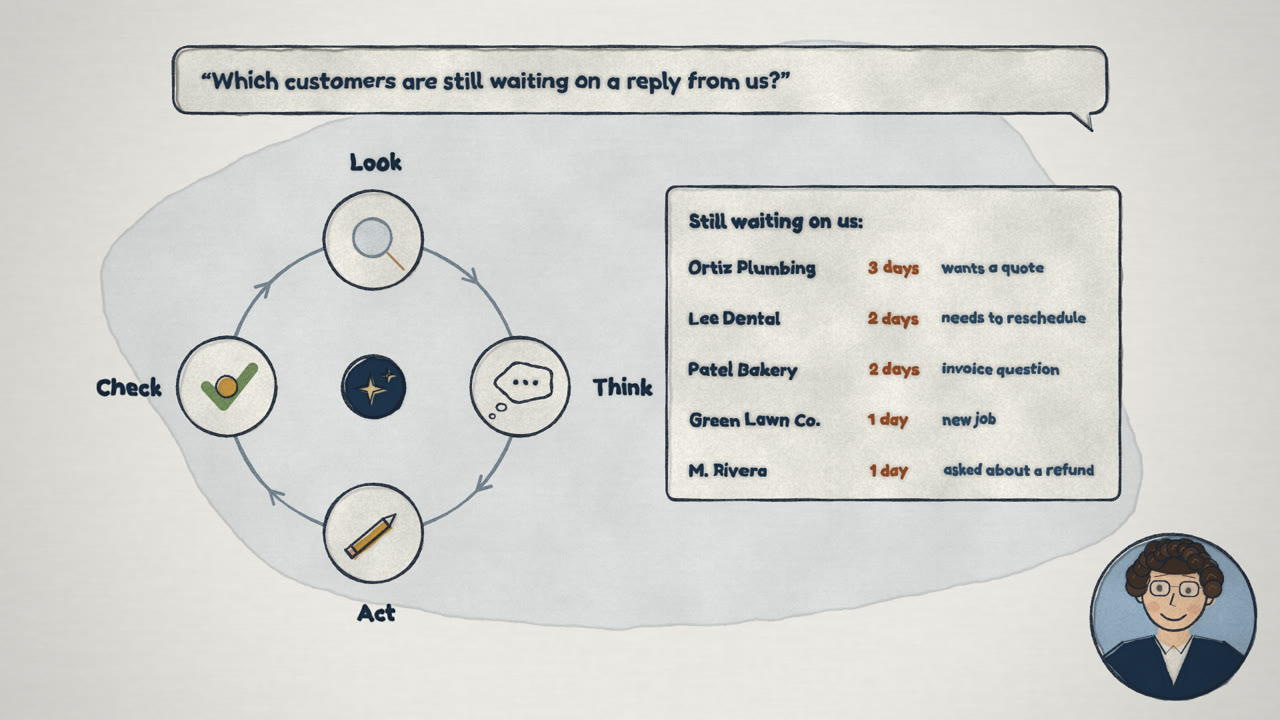
Look, think, act, check
Instead of answering once and stopping, an agent keeps going until the job is done. You give it a goal; it figures out the steps.
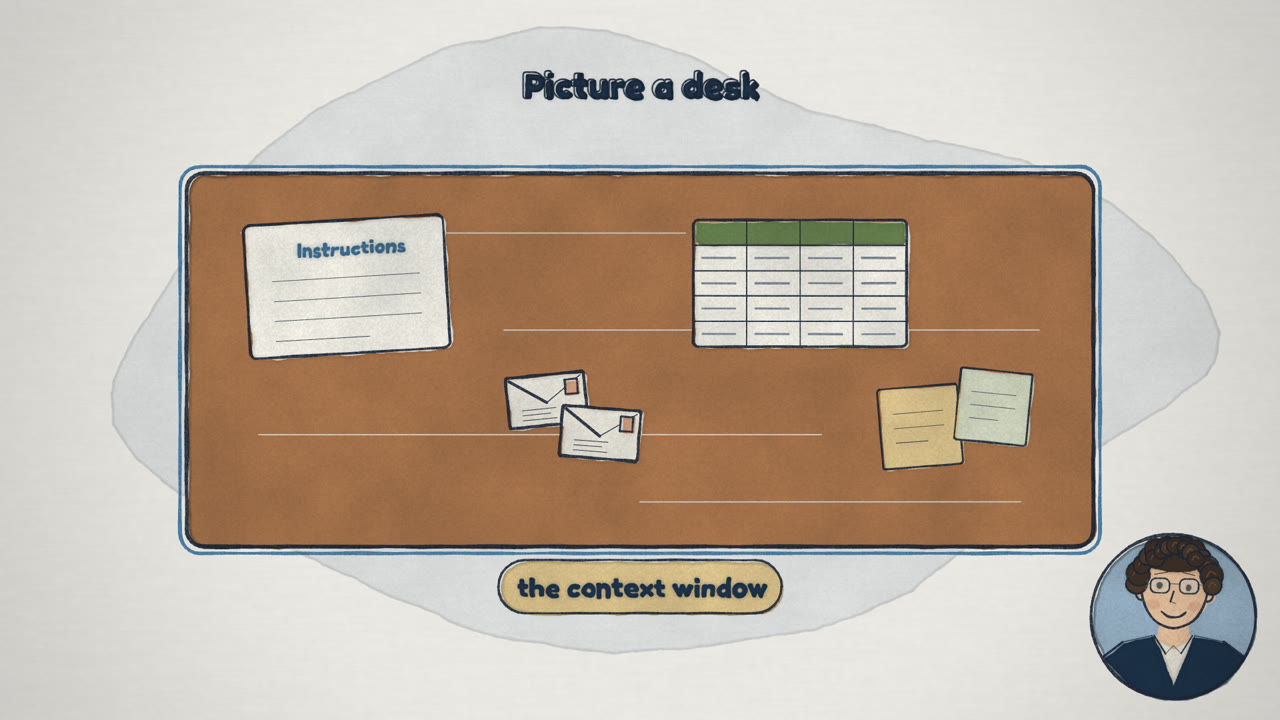
A desk and a notebook
Everything it's working on has to fit on a desk called the context window. It's big but not endless, and a new conversation wipes it clean. So good agents keep a notes file and read it every time they start.
Keeping it in line
Treat it like a new hire
On day one you don't hand over the company credit card. Let it look around, check its work, and give it more as it earns it.
Start read-only
It can read your inbox but not send. It can read the spreadsheet but not change it. Only connect accounts your company has approved.
It asks first
Claude Code stops before it changes anything and asks you: yes, no, or "yes, and don't ask me about this again."
A person approves
Agents are great at the first draft. Keep a person approving anything that goes to a customer.
Agent or automation?
If the steps are always the same, use an automation. If the job needs reading, judgment or "well, it depends," that's a job for an agent. Plenty of businesses use both.
Automation (Zapier and friends)
A recipe: when this happens, do exactly these steps. Fast, cheap and predictable, but it gets stuck when something doesn't fit the recipe.
Agent
Like a new employee: you give it a goal and it figures out the steps. It can tell a complaint from a question and notice when something looks off. Slower, costs more to run, and it's guessing.
Why agents mess up, and the fixes
Confident guesses
It would rather answer than say "I don't know," so it can fill a gap with something that sounds right and isn't: a made-up price, a date that's off, a policy you never had.
Missing context
If it can't see your price list, it can't quote from it. If it doesn't know your rules, it'll guess.
Give it the real source
The actual price list, the actual policy. And ask it to show where it found things, so you can check.
You have the final say
Keep a person approving anything that goes to a customer.
Set it up in 5 steps
Take it slow. About ten minutes the first time. No coding.
Make a Claude account
Go to claude.ai. Claude Code needs a paid plan; Pro is the cheapest one that includes it.
Open your terminal
Mac: hold ⌘ Command, press Space, type
terminal, press Enter.
Windows: click Start, typePowerShell, press Enter.A terminal is just a window where you type instead of click. You can't break anything by opening it.
Install Claude Code
On the Claude Code page, click Copy next to the install line. Click into your terminal, paste, and press Enter. Give it a minute.
You don't need to understand that line. It just downloads Claude Code and sets it up.
Pick your folder
Make a folder on your desktop called
business. In the terminal, typecdand a space, drag the folder into the terminal window, and press Enter. That tells the terminal "work in this folder."Type
claudePress Enter. The first time, your browser opens so you can sign in. When it asks if you trust this folder, say yes. From here on, it's just like chatting.
Give it hands: the 4 ways to connect a system
From easiest to most hands-on. For your first agent, all you need is way 1: your inbox.
A plug built for AI
Gmail, Outlook, Google Calendar, Google Drive and Slack have one. In Claude Code, just ask: "Connect to my Gmail." It walks you through it, and you sign in.
A program you control by typing
Some software companies make one for their product, and Claude Code is great at using them.
A drive-through window for software
Most booking, accounting and customer-list software has one. Ask the company for API access, a key and the documentation, save the key in your folder, and have Claude Code build the connection.
The fallback
Almost every system has an export button that gives you a spreadsheet. Save it in your business folder and Claude Code can read it. Works on day one.
Your first agent: the morning briefing
Write it like you'd brief a new hire: the goal, the tools it can use, the rules, what "done" looks like, and when to come get you.
Connect to my Gmail.
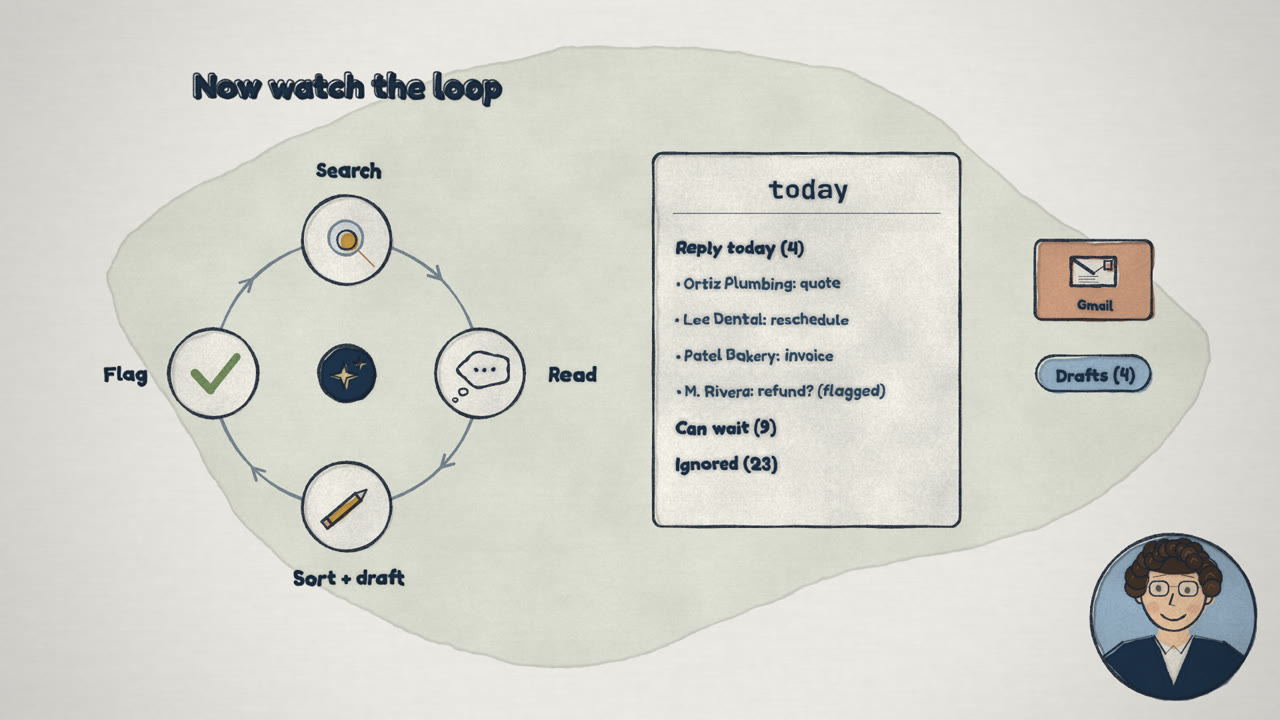
Every morning, go through my inbox from the last day. Sort every email into three piles: needs a reply today, can wait, and ignore. For each one that needs a reply, write a draft in Gmail, but don't send anything. If you're not sure which pile something goes in, put it in 'needs a reply' and tell me why. When you're done, write me a one-page summary called today.
Save that as my morning briefing.
Run my morning briefing.
Never offer a refund without asking me first. Add that to your notes.
More jobs to hand an agent
Booking
Reads new job requests, checks your calendar, and drafts a reply with three open time slots.
Quotes
Pulls your price list and past jobs and drafts the quote, with the final number left for you.
Invoices
Every Monday, checks who's past due and drafts a friendly reminder to each one.
Common questions
Drafts answers from your own policies, and flags anything new.
Chapters
- Everyone's talking about agents
- What is AI, really?
- Chatbot vs. agent
- The agent loop
- How agents remember
- Keeping agents in line
- Agent or automation?
- Why agents mess up
- Claude and Claude Code
- What is a terminal?
- Setting it up, step by step
- Give it hands: 4 ways to connect
- Build your first agent
- More jobs to hand an agent
- Recap
Want agents built in for you?
Benmore builds AI agents into real businesses: your inbox, calendar and systems connected, so it just runs.
Talk to Benmore