ChatGPT Work for Small Business: The New ChatGPT Agent, Explained From Zero
Everything from episode 9 in one place: what ChatGPT Work is and where "ChatGPT agent" went, how it works inside, where to find it and what it costs, the five setup steps, every request Dana typed for her price check, her new customers, the van booking and her proposal deck, signing in, plugins, how you stay in charge, and where Work stops.
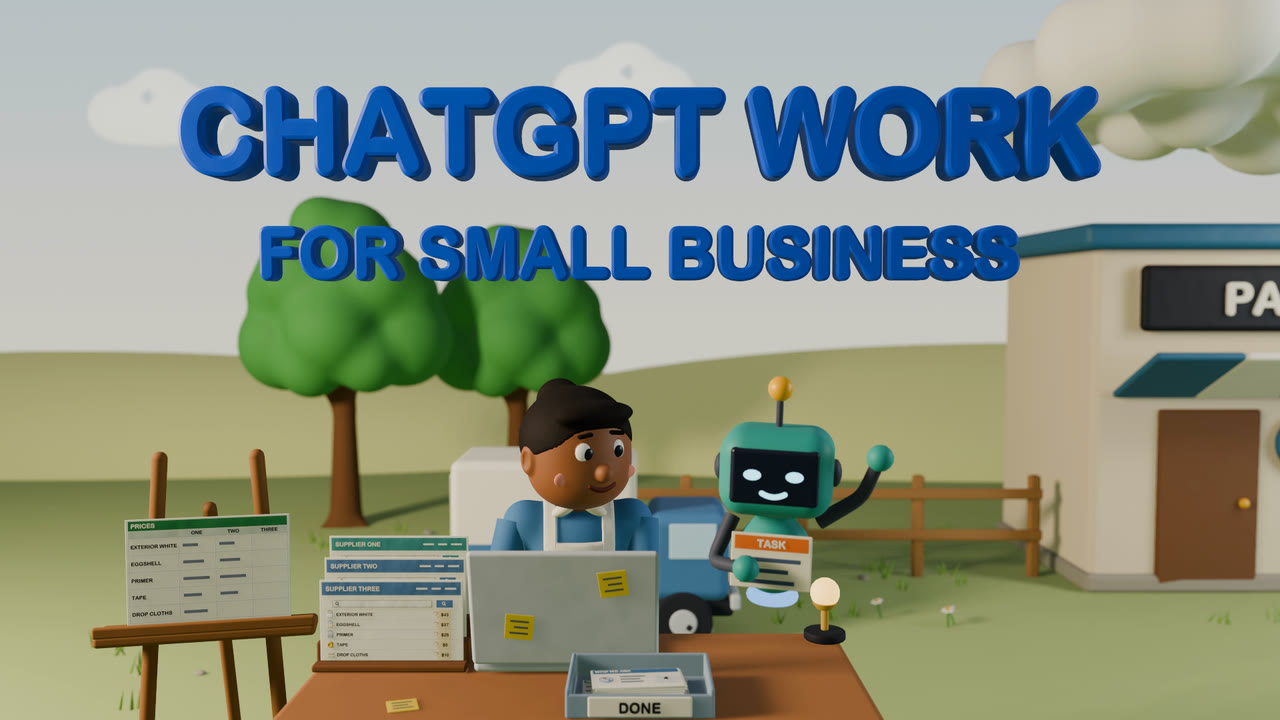
What ChatGPT Work is
AI like ChatGPT learned by reading an enormous amount of text. Ask it something and it writes back one word at a time, always guessing the most likely good next word. ChatGPT is made by a company called OpenAI. Most people know the chat side of it. You type a question, and it types back an answer. It can write you a great email or explain a confusing bill, but then you still do the work yourself.
Work is the second mode, right next to Chat. It's an agent: an AI that takes steps, instead of only talking. You describe the result you want, and it plans the steps, does them, and hands you the finished thing.
Chat
In OpenAI's words, "Chat is for fast, conversational assistance." You ask, it answers, and you do the next steps yourself.
Work
In OpenAI's words, "Work is an agent designed for longer, multi-step work and finished deliverables." You describe the outcome, and it does the clicking.
Where "ChatGPT agent" went
If you know ChatGPT agent, or agent mode, you'll find it as Work now. OpenAI's Work help page puts it this way: "Work is an agent designed for longer, multi-step work and finished deliverables."
July 9, 2026: Work arrives
OpenAI launched Work as "an agent in ChatGPT," with "Codex technology built-in." It's the third step in a line: Operator first, then agent mode in July 2025, which gave ChatGPT "its own computer," and now Work.
How it works, inside
What happens after you hand it a task.

It makes a plan
You can see the steps it intends to take. In Plan mode, it "creates a step-by-step plan" for you to approve before it starts.
It gets its own browser, in the cloud
On the web and on your phone, Work has "its own browser on a separate computer in the cloud." It can open websites, "click buttons, enter information into forms," the same way you would. You can watch it happen.
On desktop, it can use your files
In the desktop app, for Mac and Windows, it can also use "local files and desktop apps with your permission."
It asks before a commitment
Before anything that creates "a financial, legal, account, or other real-world commitment," like "a booking or making a payment," it stops and asks you first.
You can steer it
While it works, you can "follow its progress, answer questions, change direction, and approve important actions."
It hands back the finished thing
"Documents, spreadsheets, presentations, reports, and analyses." It also makes native Google Docs, Sheets and Slides.
Where to find it, and what it costs
Work lives inside the regular ChatGPT app. There's nothing new to buy or install.
On the web
At chatgpt.com, select Work.
On your phone
In the ChatGPT app, use the dropdown at the top of the screen.
In the desktop app
On Mac or Windows, choose ChatGPT from the top-left menu, then select Work from the toggle.
Work chats in the cloud "sync across web, mobile, and desktop," so you can start a task on one and check it on another.
The plans
Free ($0) and Go ($8 a month)
"Limited ChatGPT Work access on desktop." A way to try it, in the desktop app only.
Plus, $20 a month
Work "on desktop, web, and mobile." The one most owners should start with. If you run out, Plus users can buy extra credits.
Pro, $100, $200 or $500 a month
Three tiers, with more room for Work to run.
Business, for a team
Standard is $25 per person a month, or $20 if you pay for the year. Premium is $125, or $100 for the year, with "5x more usage." The minimum is 2 seats. It adds a shared workspace, admin controls, team tasks, and @ChatGPT in Slack and Teams. Business used to be called Team.
There's no fixed number of tasks a month. In OpenAI's words, "usage varies with the amount of work required." A quick price check uses a little, and a long research job uses a lot.
Set it up in 5 steps
No code, and nothing to set up on a server.
Make a free account
Go to chatgpt.com, or get the ChatGPT app, and click "Sign up for free."
Pick the Plus plan
Click "Get Plus." At $20 a month, Plus runs Work on the web and on your phone, not just the desktop.
Select Work
On the web, select Work when you start a new chat. In the desktop app, flip the toggle from Chat to Work.
Connect the apps you use
Click Plugins in the sidebar, find your app, click Install plugin, then Connect, and sign in. There are more than 1,400 plugins, including Gmail, Google Drive, Outlook, Slack, Dropbox, Shopify and QuickBooks. More on plugins.
Describe the result you want
In plain words, the way you'd explain it to a new assistant. When it asks to visit a website, approve it.
Every request Dana typed
Four tasks from Dana's week, plus a check that runs every Monday. Copy them, then swap in your own suppliers, your own town and your own apps.
1. The price check
Dana checks what three paint suppliers charge every week, by hand. She selected Work and typed:
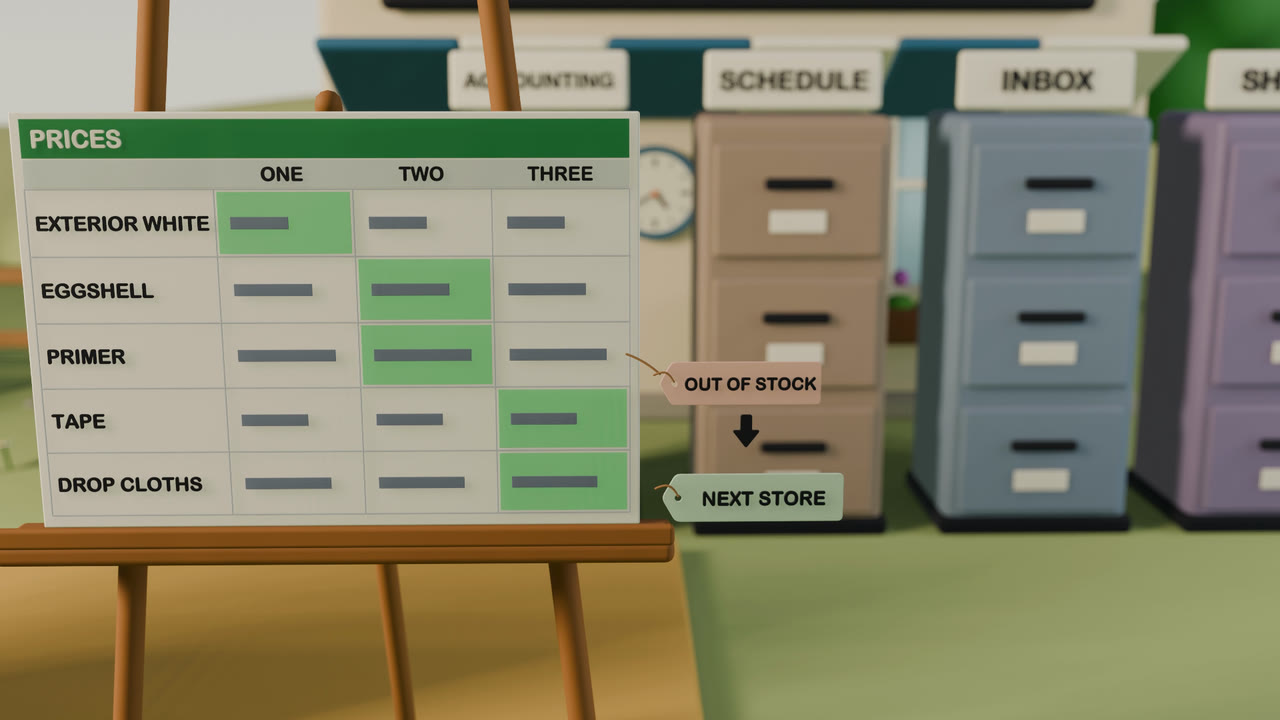
Check today's price of these five things on these three paint suppliers' websites: exterior white, interior eggshell, primer, painter's tape, and drop cloths. Put it in a spreadsheet, with a column for each store, and highlight the cheapest one in each row. Tell me if anything's out of stock at the store nearest me.
Work wrote a short plan. Then, on its cloud computer, it opened the first supplier's site, searched for each product and noted the price, then did the same on the second site and the third. Dana could have watched, but she went and loaded the van. A little later there was a spreadsheet: fifteen prices, the cheapest in each row highlighted, and a note. The primer was out of stock at the closest store, but the next one over had it.
2. New customers
Dana's best customers are property managers. One manager can mean ten apartments a year. With the Gmail plugin connected (how to add a plugin), she typed:
Find property management companies within twenty miles of my town that look after apartment buildings. For each one, list the company, the website, the public contact email or phone, and roughly how many buildings they manage. Put it in a spreadsheet. Then write a short, friendly intro email to each one, and save them as drafts in my Gmail.
Work searched, opened each company's website, and filled in the sheet one row at a time. Because Gmail was connected, it wrote each email straight into her drafts. It didn't send them. Sending email counts as a higher-risk action, and Dana has it set to ask first. She read the drafts, changed a line in two of them, and sent them herself.
3. The van booking
The van was due for its service, and the garage takes bookings on its website. Dana typed:
Book the van's oil change and brake check at my usual garage, on the first weekday morning they have free next week. Use my account. Check the time with me before you confirm.
Work opened the garage's website and paused so Dana could sign in on the secure form (how signing in works). Then it picked the service, found Tuesday at eight in the morning, and filled in the van's details. A booking is a real commitment, so before the final button it showed Dana exactly what it was about to book, and asked. Tuesday at eight worked. She said yes, and it booked it. Work confirms before a payment, too.
4. The proposal deck
Dana had a meeting with a property manager. She uploaded a spreadsheet of last year's jobs and a few photos, and typed:
Make a six-slide proposal for Harbor Property Management. Who we are, five recent apartment jobs with before and after photos, our usual timeline, the price range per unit from my sheet, and why we're easy to work with. Keep it clean and simple.
Work read her numbers, picked the jobs, worked out the price ranges, and laid out the slides. She could download the deck, or open it in Google Slides, and change anything she didn't like. Dana checked every number against her sheet. Two were rounded the wrong way, so she asked Work to fix them, and it did. On Pro and Business, the newer Slides feature (from October 16) exports "to PowerPoint, PDF, or Google Slides."
Every Monday, on its own
Some tasks come around every week. Dana turned her price check into a scheduled task:
Every Monday at six in the morning, check the same five prices at the same three stores, and tell me what changed since last week.
Scheduled tasks "run once, repeat on a schedule or trigger, or monitor for changes." A new Gmail or Slack message can set one off. You manage them all under Scheduled. Plus can have 5 active tasks, Business 10 and Pro 15.
Signing in and taking over
Some websites need you to sign in. Here's what happens then.
It pauses and asks you to sign in
When Work reaches a page that needs your account, it "pauses and asks you to sign in" on a secure form. You type your username and password into that secure form yourself. OpenAI says the password is "not visible to the model, and ChatGPT does not store" it.
You can take over
If it gets stuck on a step, it asks you to "take over the cloud browser on your phone or computer." Finish that step yourself, then hand it back.
Some sites block it
Some websites don't let it in. When that happens, you do that part yourself.
Signing in to websites came to Work on August 25, for Plus and Pro.
Plugins: connect your apps
A plugin is a link between ChatGPT and one of your apps, like Gmail, Google Drive or QuickBooks. They used to be called connectors. There are "more than 1,400 plugins," and you choose which ones Work can use.
Open Plugins
Click Plugins in the sidebar.
Install the one you need
Find your app and click Install plugin.
Click Connect
Then sign in to that app, the way you'd sign in anywhere else.
Use it in a request
Type @ and the app's name to use it.
Apps for small business
OpenAI's small-business partners include Dropbox, Shopify, Intuit, Slack, Atlassian and Wix. Gmail, Google Drive, Outlook, SharePoint, Teams and Slack are there too.
QuickBooks
With the QuickBooks plugin, Work can "prioritize overdue invoices and prepare payment reminders for review."
Staying in charge
Handing work to an agent doesn't mean handing over control. Here's how you stay in charge.

You decide what it can do on its own
Each connected app has a setting, from Always ask all the way to Allow all actions. Sending email and making purchases count as higher-risk, so Dana keeps those on Always ask.
New websites start on Always ask
That's the default. OpenAI says "Always allow" is "not recommended."
Commitments wait for you
Bookings, payments, and anything else that creates "a financial, legal, account, or other real-world commitment" wait for your yes.
Watch it, and step in
Watch any task as it runs. Answer its questions, change direction, or stop it.
Check what comes back
Work is good, but it isn't perfect. Read the result before you use it, the way Dana checked the numbers in her deck.
Treat website content as untrusted
A web page can hide instructions meant to trick an agent. OpenAI's advice is to "treat website content as untrusted." That's one more reason the steps that matter wait for you.
Choose whether your chats train the model
On Free, Plus and Pro, turn off Improve the model for everyone in Settings, under Data controls. On Business, your data isn't used for training "by default."
Where Work stops
Work is great at slow web chores. Some work needs something else.
It isn't instant
It works in a browser, carefully, the way a person does. A task that takes you two minutes might take it longer. Hand it the slow, boring work.
It reaches only what you give it
The sites you let it visit, the plugins you connect, and the files you give it. And some websites don't let it in.
It uses up your plan
Big tasks use more. On Plus, you can buy extra credits if you run out.
Real software
If the same task runs every day at the heart of your business, like pricing every job, or keeping your schedule, your books and your customer records in sync, you'll want it built properly, so it's fast, cheap and the same every time. That's real software. That's the time to bring in an engineer.
10 tasks to hand to ChatGPT Work first
A good first task passes three questions. You already know how to do it, so you can tell if the result is right. It's small, and you can describe it in a few sentences. And you can check the result in a minute or two. These ten do. Print the list, or keep this page open.
A price check across suppliers
"Check today's price of these five products on these three suppliers' websites. Put it in a spreadsheet with a column for each store, and highlight the cheapest in each row."
How to check it: open two of the product pages yourself and compare the prices with the sheet.
A lead list from public websites
"Find businesses within twenty miles of my town that could hire us, and list each one's name, website and public contact email or phone in a spreadsheet."
How to check it: open three of the websites and make sure the contact details match.
A booking, with your approval
"Book this service on my usual provider's website for the first free weekday morning next week. Use my account, and check the time with me before you confirm."
How to check it: read the summary it shows you before you say yes, then look for the confirmation email.
A proposal deck from your numbers
"Make a six-slide proposal from this sheet of past jobs: who we are, five recent jobs, our usual timeline and our price range."
How to check it: compare every number on the slides with your sheet.
A weekly change check, on a schedule
"Every Monday at 6 AM, check these prices on these websites and tell me what changed since last week."
How to check it: compare the first report with the websites yourself before you rely on it.
A competitor website check
"Look at these three competitors' websites and summarize their services, their prices and any offers they're running now, with a link for each."
How to check it: click two of the links and make sure the details match the page.
Quotes, side by side
"Put these three quotes side by side in a table: the price, what's included, the timeline, and anything one leaves out that the others include."
How to check it: match each row against the quote it came from, especially the totals.
Reviews into a summary
"Gather our customer reviews from these review pages and summarize what people like and what they'd change, with two or three quotes for each."
How to check it: open the review pages and make sure each quote is really there.
A recurring online form
"Fill in this month's form on this website with the numbers from this sheet, and show me the filled-in form before you submit it."
How to check it: read every field on the form it shows you before you let it submit.
Prep for a sales meeting
"I'm meeting this company on Thursday. From their website and public pages, give me a one-page brief: what they do, how big they are, and three questions to ask."
How to check it: open their website and confirm the key facts before the meeting.
Sources
Where the facts in the episode come from.
Ready to automate more than a task?
That's what Benmore's forward deployed engineers do. They work inside a business, find the work worth automating, and build it with AI, properly.
Talk to Benmore