Claude Code Best Practices: 10 Advanced Tips for Beginners (Explained From Zero)
Everything from episode 17 in one place: what Claude Code is and the five-step setup in the Claude app. Then ten advanced tips, easiest first, each shown on the crew lead's real work, with where each button lives, the shortcuts, and Anthropic's own cautions. Plus where it stops, and a free cheat sheet with every request the crew lead typed, ready to copy.
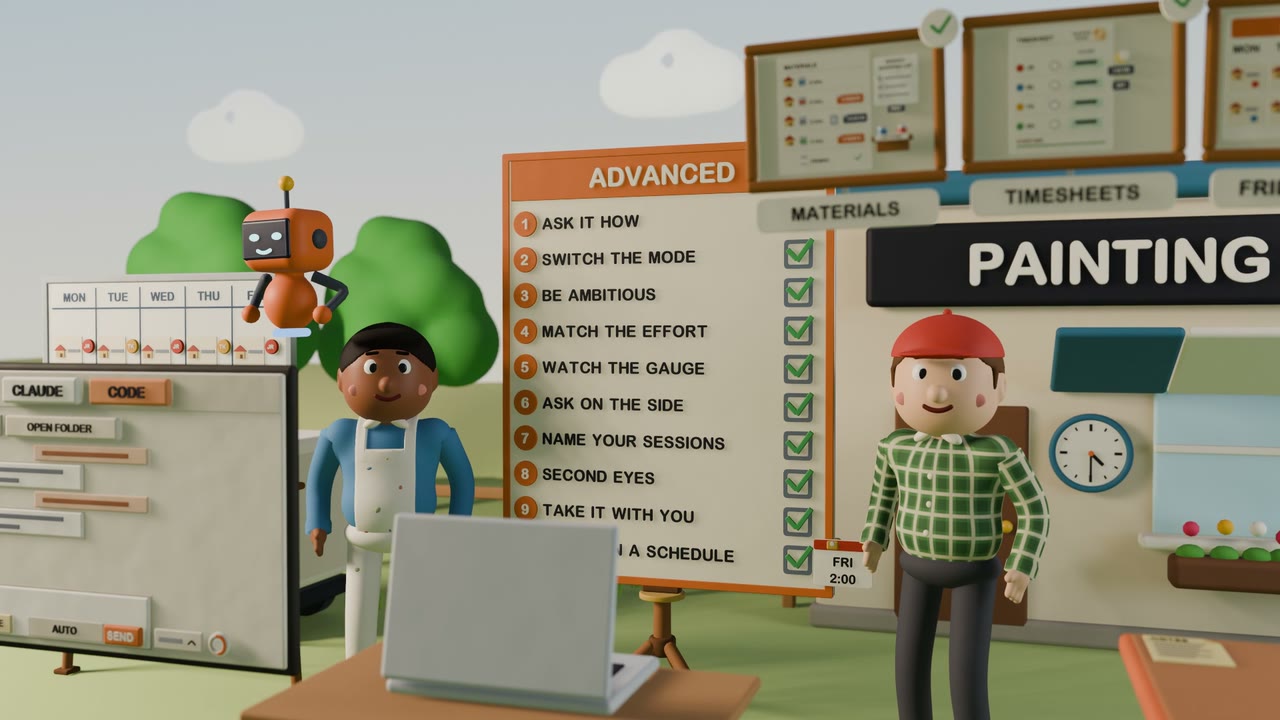
Forty approvals on a Tuesday night
Tuesday, 9:40 at night, and Dana's crew lead is still at the folding table.
A few weeks ago, he built the crew schedule app with Claude Code. His painters check it on their phones every morning. Now he wants three more things from it: a materials list for every job, timesheets for the crew, and next week's schedule, drafted every Friday.
He's been at it since dinner. Every few seconds, Claude Code stops to ask, and he clicks approve. Forty times. Then a card says he's hit his usage limit until after midnight, and he's finished one thing on his list.
Claude Code isn't the problem. He's still using it the beginner way: sitting there, watching every step. These ten tips turn it into something that works while he's out on a job.
Anthropic's own guide says Claude Code usually gets it right with no setup at all, and that the guide "covers what to do when the defaults aren't enough." These tips are for those days.
Claude Code, from zero
AI, the kind everyone's talking about, is a program that learned from an enormous amount of text. Ask it something, and it answers one word at a time.
Claude is the AI made by a company called Anthropic. Claude Code is the version that works on your own computer, inside a folder you choose. It reads the files there, writes new ones, runs them, and checks the result. You describe what you want in plain words, and it writes the code for you. In Anthropic's words, you ask it "to work on the code in a folder on your computer, then review the changes yourself, without using a terminal."
Its loop
It goes around until the task is done, and you can interrupt it at any point.
It gathers
What it needs: the files in your folder, and your request.
It acts
It writes a file, or runs one.
It checks
The result. If something's off, it goes around again.
Sessions
Each conversation with it is called a session. Anthropic: each one "has its own chat history and project folder, independent of any other session. The sidebar lists your sessions and lets you run several in parallel." Tips six, seven, eight and nine are all about sessions.
Set it up in 5 steps
Here's the whole setup, from nothing.
Download the Claude app
From claude.com/download. On a Mac, one download works on both Intel and Apple Silicon. On Windows, there's an installer for x64 and one for ARM64. Linux is in beta. The app includes Claude Code, so there's nothing else to install.
Sign in, on a paid plan
Claude Code needs one: Pro, Max, Ultra, Team or Enterprise. The cheapest is Pro, at $20 a month, or $17 a month if you pay for the year ($200 up front). For heavier use, Max is $100 a month, and Ultra is $200. On the free plan, the Code tab asks you to upgrade first.
Click Code
At the top of the app's sidebar.
Choose Local, and open your folder
In the row under the message box, click the first button and choose the top entry under Local, so it works on your own computer. Then click the folder button beside it, choose Open folder…, and pick your project's folder.
Leave the model, set the mode to Manual
The same row has the mode selector and, toward the right end, the model picker. Leave the model as it is, and set the mode to Manual for now, so it asks before every change. Tip two changes that.
A mode you pick is remembered for that folder, so Anthropic suggests checking the mode selector before your first message. Not confirmed: Anthropic doesn't say which mode a brand-new session in the app starts in, which is why step five sets it by hand.
Prefer the terminal?
You may hear that Claude Code runs in a terminal, a plain window where you type instead of clicking. That version exists, and you install it separately. The app "runs the same underlying engine with a graphical interface," and everything on this page happens in the app, with buttons.
The ten tips
Easiest first, each one shown on the crew lead's materials list, timesheets and Friday schedule. The last one changes the most.
Tip 1: when you don't know how, ask Claude Code
Claude Code can answer questions about itself. Anthropic: "Claude can answer questions about its own features and limitations. It looks up the answers in the current Claude Code documentation, so they aren't limited to the version you're running."
That matters, because it changes fast. Version 2.1.311 came out on October 26, 2026, and version 2.1.318 on November 4: six new versions in ten days. One of them (2.1.312, October 27) renamed the "session limit" in usage messages to the "5-hour limit". A video from the spring can be out of date. The documentation it checks isn't.
The crew lead's question:
Why do you keep asking me to approve every little change, and can I turn that down?
It explains the permission modes in plain words, and tells him where they live: the mode selector, in the row under the message box. One question, and he knows exactly where his evening went.
Ask it the same way about anything: where a setting is, or what it can't do. One of Anthropic's own examples:
What are the limitations of Claude Code?
Anthropic's tip for these questions: "Ask specific questions to get detailed answers".
Tip 2: stop approving every step. Switch the mode
Manual mode asks before every edit, and every command that does more than read. Anthropic's guide names the catch: "Safe, but after the tenth prompt you start approving without reading, and nothing moves while you're away from the keyboard."
Change it with the mode selector, in the row under the message box, or press Cmd+Shift+M on a Mac (Ctrl+Shift+M on Windows). You can switch at any time, even mid-session. In the app, Shift+Tab doesn't switch modes, as it does in the terminal.
| Mode | What it does, in Anthropic's words |
|---|---|
| Manual | "Claude asks before editing files or running commands. You see a diff and can accept or reject each change." |
| Accept edits | "Claude auto-accepts file edits and common filesystem commands like mkdir, touch, and mv, but still asks before running other terminal commands." |
| Plan | "Claude reads files and runs commands to explore, then proposes a plan without editing your source code." |
| Auto | "Claude runs without routine prompts; before actions such as shell commands and network requests run, a background classifier checks that they align with your request." |
How Auto decides
Reading your files and editing them in your folder go ahead on their own. Everything else goes to the classifier: a second AI model that checks the action matches your request. Anthropic lists what it blocks by default, including:

Draw your own lines
Say it in the chat, in plain words. The crew lead's line:
Don't publish anything until I've looked.
Anthropic: "If you tell Claude 'don't push' or 'wait until I review before deploying', the classifier blocks matching actions even when the default rules would allow them." But such a line isn't stored as a rule: in a very long session, it "can get lost when the conversation compacts".
The crew lead picks Auto, asks for the timesheet pages, and goes out to load tomorrow's drop cloths. When he comes back, the first page is built, and he didn't approve a thing.
When Auto steps back
"If the classifier blocks an action 3 times in a row or 20 times total, auto mode pauses and Claude Code resumes prompting."
Who gets it
Every plan that has Claude Code, with a recent model. The default model, Opus 5.5, qualifies. In the app, Auto appears in the mode selector when it's available.
Anthropic is clear: "Auto mode reduces permission prompts but does not guarantee safety. Use it for tasks where you trust the general direction, not as a replacement for review on sensitive operations."
A fifth mode, Bypass permissions, appears only after you turn on a setting. Anthropic's note on it: "Only use this in sandboxed containers or VMs."
Tip 3: tell it how big you're hoping for
Anthropic's guide: "One phrase that does still help is be ambitious. Claude tends to read a request conservatively and build the smallest thing that satisfies it, since it can't see how much you were hoping for. When you want the fuller version, with the edge cases handled and the natural follow-on included, say so."
The materials list from Tuesday night worked, but it was bare: gallons per job, and nothing else. So the crew lead asks again:
Build out the materials list. Be ambitious: two coats where a job needs them, paint left over from last week, jobs where the color isn't picked yet, and a shopping list for Monday morning.
This time it handles the awkward cases, and adds the next step on its own: a print button for the shopping list.
In Anthropic's words: "That's telling Claude about scope, which only you know, rather than how hard to think."
Anthropic's own example lists the extras it wants after the phrase: "be ambitious: empty and error states, the save flow wired up, keyboard navigation, not just the layout". Naming the awkward cases, as the crew lead did, works the same way. Anthropic also says that phrases like "think step by step" or "be thorough" are ordinary text, not special keywords.
Tip 4: match the effort to the job
Open the model picker, toward the right end of the row under the message box, and pick a level under Effort. Or press Cmd+Shift+E on a Mac (Ctrl+Shift+E on Windows) to open the effort menu. The default model, Opus 5.5, starts at medium.
Effort isn't just thinking time. Anthropic: "Effort level controls how much work Claude does on your request overall. This does include how long the model thinks, but also: How many files it reads; How much it verifies; and How far it pushes through a multi-step task before checking in with you."
| Effort | When, in Anthropic's words |
|---|---|
| Low | "Quick exchanges where you review each result, such as brainstorming, a first sketch, or a small change like a rename" |
| Medium | The default for Opus 5.5, the default model. |
| High | "Work where verification matters or edge cases are likely, such as fixing a bug in an existing codebase" |
| Xhigh | With high, for when "getting it right depends on cases that are quick to overlook". |
| Max | "Hard problems you want Claude to work through without you". It's "prone to overthinking, so test before adopting it broadly". |
The timesheet has one tricky part: overtime, after seven at night and all day Saturday. So the crew lead turns effort up to high. It checks more of the cases, and the overtime comes out right the first time. For quick back-and-forth, like renaming a button, he turns it down to low. "Lower effort is faster and cheaper for straightforward tasks."
Raise the effort, or change the model?
Anthropic's rule of thumb: "If Claude has all the pertinent context, clearly tried, and still got it wrong, that's a signal to pick a more capable model. If Claude got it wrong by skipping a file, not running the tests, or bailing on a refactor partway through, pick a higher effort level."
Opus 5.5
The default on Pro, Max and Ultra. Anthropic: it "handles most coding well and Sonnet costs less on routine work."
Fable
Anthropic's most capable model in Claude Code. On Pro, it's "paid with usage credits". On Max, it's "included, up to half your weekly limit".
Higher effort uses more of your plan: the extra checking "is where the extra time and tokens go". Not confirmed: Anthropic's page for the app says to pick "a level under Effort" without listing the labels. The five above are the levels Anthropic lists for Opus 5.5.
Tip 5: watch the gauge, and let it finish while you sleep
Claude Code shares one allowance with everything else you do in Claude. Anthropic: "Your activity across Claude on web, desktop, mobile, and Claude Code all draws from the same pool." Pro and Max have "a five-hour session limit and a weekly limit."
The usage ring
It's in the row under the message box. Click it "to see your plan usage, which is shared across all your Claude Code surfaces." You can also see where you stand in Settings, then Usage.
The warnings
"You'll see warning messages as you approach any limit." Anthropic's example: "You've used 85% of your session limit · resets 3:45pm".
Auto-continue
Hit the five-hour limit
The card that appears in the Code tab has a checkbox: Auto-continue when limits reset.
Check it, and leave the session open
The card then shows "Auto-resuming at" and the reset time. The crew lead checks it, leaves the app open, and goes to bed.
After the reset
The app "retries the interrupted turn" on its own, and the timesheet gets finished.
That checkbox is only on the five-hour card. "The weekly-limit card doesn't" have it.
| Plan | Price | Usage |
|---|---|---|
| Pro | $20 a month, or $17 a month billed yearly ($200 up front) | A five-hour limit and a weekly limit |
| Max | $100 a month | "5x the usage of Pro every 5 hours and every week" |
| Ultra | $200 a month | "10x Pro usage every week", and "No 5-hour limit" for verified accounts |
Anthropic says Ultra is the new name for the Max 20x plan, and Max is the new name for Max 5x. Not confirmed: the exact wording on the card. Anthropic's pages call it the "session-limit card", while version 2.1.312 started calling that window the "5-hour limit" in usage messages, so your card may use either name. The checkbox name is the same on both pages.
Tip 6: ask your side questions on the side
Press Cmd+; on a Mac, or Ctrl+; on Windows. Or type /btw in the message box. Anthropic: "A side chat lets you ask Claude a question that uses your session's context but doesn't add anything back to the main conversation. Use it when you want to understand a piece of code, check an assumption, or explore an idea without steering the session off course."
Halfway through the timesheet, Claude mentions it's storing hours in quarter hours. Asking in the main chat would put a detour in good work, so the crew lead opens a side chat and asks:
Why quarter hours?
He gets a plain answer, closes the side chat, and the main work carries on as if he'd never asked.
"The side chat can read everything in the main thread up to that point. When you're done, close the side chat and continue the main session where you left off." It's the place for every "wait, what does that mean?": a dev server, a file name, a choice it made an hour ago.
Not saved
"The desktop app doesn't save side chats to disk, so you can't return to one after you close the app."
Where it works
"Side chats are available in local, SSH, and WSL sessions." A local session is the kind this page sets up.
Not confirmed: whether a side chat in the app can look anything up beyond the session (Anthropic says the terminal's /btw "answers only from what is already in context"), and where on screen it opens. The crew lead's question is about the session's own work, which the side chat can read.
Tip 7: name your sessions, and let one ask another
Every session keeps its own conversation, and they pile up in the sidebar fast. To rename one, open it, and click its title at the top of the window. You can also ask Claude to rename or archive a session. The crew lead names his three: Materials, Timesheet, and Rain days.
Here's why that pays off. Anthropic: "Claude can list your other Code tab sessions, read what each has been doing, and send messages between them."
1. Ask one session about another
The next week, in a brand-new session (+ New in the sidebar, or Cmd+N, Ctrl+N on Windows), he asks:
What did we decide about overtime in the Timesheet session?
It finds that session, reads it, and answers: after seven at night, and all of Saturday. No digging through old chats, and no explaining it all again.
2. Pass a message along
Tell the Rain days session that Saturday counts as overtime.
If the other session is busy, "Claude Code holds the message and Claude reads it once the current work finishes."
Which sessions it sees
"By default it sees the 20 most recently active sessions and skips archived sessions unless you ask for them."
Which it doesn't
Only the sessions the app runs itself (local, SSH and WSL sessions in the Code tab). "Claude doesn't see cloud sessions, or sessions you started from the terminal CLI or the VS Code extension".
Tip 8: have a fresh session check the work
The session that built something knows what it meant, so it reads right past its own mistakes. Anthropic's guide: "A second session is also the easiest independent reviewer you can get." It reviews the work "without having watched it being written, and you paste the findings back into the first."
1. Open a new session beside the old one
Click + New in the sidebar. Then hold Option (Alt on Windows) and click the session you want to check, so the two sit side by side. Or right-click the session and choose Open in, then Split view. The pane you opened or clicked last is the active one.
2. Set the reviewer to Plan
In Plan mode it reads and looks around, and changes nothing.
3. Ask for what matters
Review the timesheet and the materials list. Report only what would go wrong for a painter using them. Skip style.
It comes back with two findings. A painter who clocks out after midnight gets his hours split across two days: he pastes that into the Timesheet session, and it's fixed. The second, the new primer's coverage, he can't fix tonight. Tip nine does.
Keep the "skip style" part. Anthropic: "A reviewer that's asked to find problems will always find something. If you fix every finding, you end up with extra abstraction layers and tests for cases that can't happen."
To point the reviewer at a particular file, type @ followed by the file's name.
Tip 9: take the session with you, on your phone
Thursday, the crew lead is at the job site all day, and the laptop stays at the office.
Turn on Remote Control
In the session, type /remote-control (or /rc) in the message box, or use the session's Remote Control switch.
Find it on your phone
In the Claude app on your phone, tap Code. Remote Control sessions show "a computer icon with a green status dot when online." It's also in the session list at claude.ai/code.
Work from there
Read what it's doing, answer its questions, approve what it asks to do, or change the mode: tap + in the message box, then Permission. From the top of a ladder, if you have to.
Before he leaves, in the Materials session:
/remote-control
At the job site, he photographs the label on the primer can, attaches the photo in the app, and sends:
Use this coverage for the primer.
Anthropic: "Claude sees attached photos directly as part of your message." Claude reads the label, and back at the office, the materials list updates.
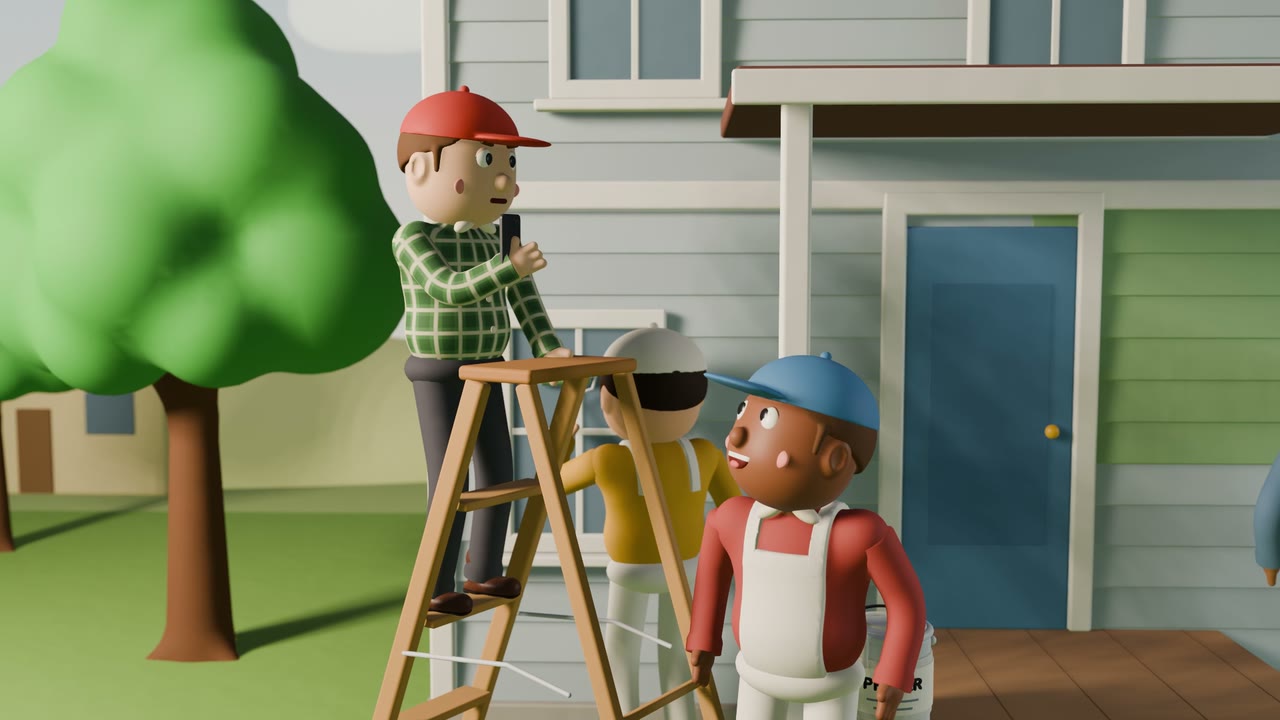
The work still runs on the laptop, with its files. Anthropic: "Claude keeps running locally the entire time, so your code execution and filesystem access stay on your machine." The phone is a window into it.
The computer stays on
Anthropic: "your computer has to stay on". If you quit the app that runs the session, "the session goes offline".
Sleep is fine
"If your laptop sleeps or your network drops, Claude Code reconnects automatically when your machine comes back online."
To connect every new session automatically, turn on Connect new sessions to Remote Control in Settings, then Code (or Settings, then Claude Code). Remote Control works on Pro, Max, Ultra, Team and Enterprise. On Team and Enterprise, an owner has to turn it on first.
Not confirmed: whether the phone gets a notification when a session run by the desktop app needs you, and whether a plan waiting for approval reaches the phone. Anthropic says permission requests and questions stay open on the phone until you answer them.
Tip 10: put the routine jobs on a schedule
The tip from the start of the episode: the one that starts Friday's work on its own. Anthropic: "Scheduled tasks start a new session automatically at a time and frequency you choose."
1. Ask for it, in plain words
Every Friday, the crew lead drafts next week's schedule from the new jobs. Same steps every time. So he asks:
Every Friday at two, draft next week's schedule from the new jobs in this folder. Put outdoor jobs early in the week, keep two-day jobs together, and leave the draft for me to check.
That creates a scheduled task. Or make one by hand: click Scheduled in the sidebar (or in the sidebar's More menu), then New task. The repeat choices are Hourly, Daily, Weekdays, Weekly, Manual and Custom.
2. Find it under Scheduled
Each task's page has Run now, a Status switch between Active and Paused, Edit, and a history of every run. If your app says Routines, that's the earlier name for the same thing.
3. Click Run now once, and watch
Each task has its own permission mode. Anthropic: "To avoid stalls, click Run now after creating a task, watch for permission prompts, and select 'always allow' for each one."
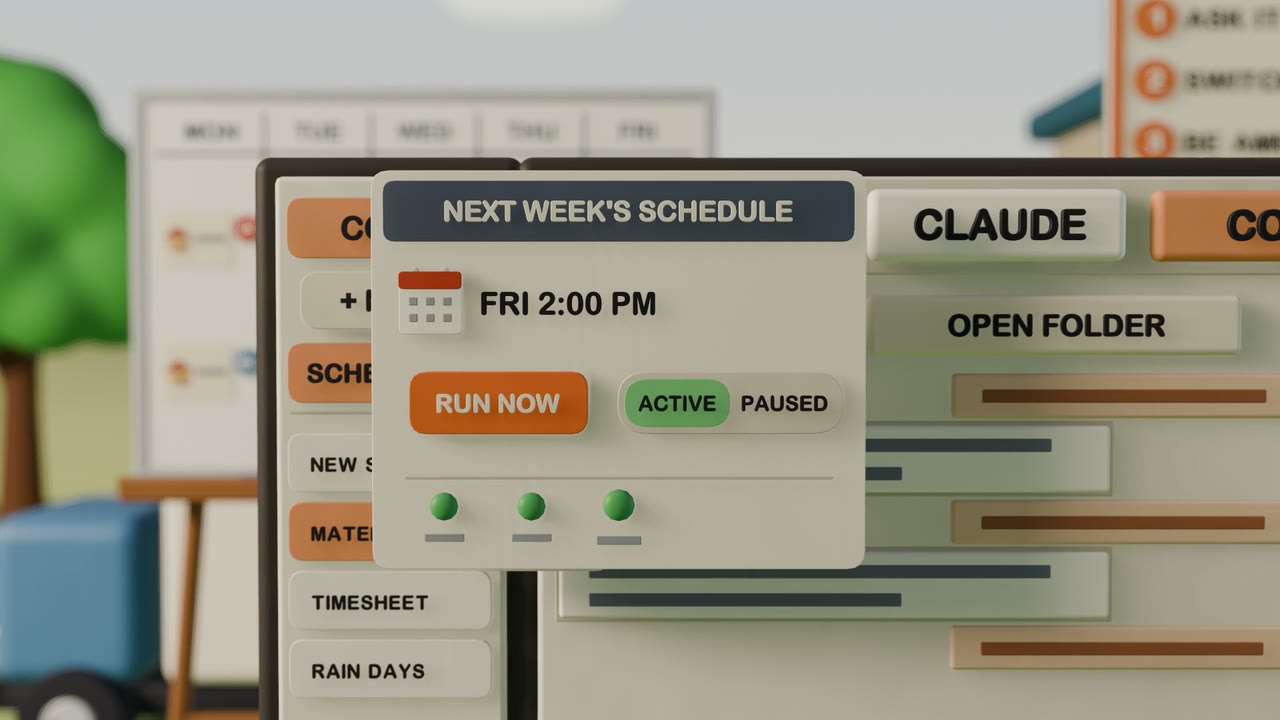
Write the instructions as if nobody will be there to answer questions, because nobody will. Anthropic: "be explicit about what success looks like and what to do with results. The task runs autonomously, so it can't ask clarifying questions."
Two rules for a task on your computer
Awake, with the app open
"Tasks only run while the desktop app is running and your computer is awake." Turn on Keep computer awake in Settings, then Desktop app (or Settings, then This computer, then System). "Closing the laptop lid still puts it to sleep."
One catch-up run
If the computer sleeps through two o'clock anyway, the app checks for missed runs in the last seven days when it wakes, and "starts exactly one catch-up run for the most recently missed time".
Each run starts a fresh session, a few minutes after the scheduled time. Then Friday at two, the crew lead is on a porch across town, and the draft is waiting when he gets back.
There are also cloud tasks, which run "even when your computer is off", but they work from a fresh copy of a repository, not the files on your computer. Not confirmed: whether a scheduled run shows up on your phone through Remote Control.
Get the free cheat sheet: all ten tips, and every request the crew lead typedWhere it stops
Anthropic is candid about the limits.
Auto isn't a guarantee
It cuts the questions, but "does not guarantee safety", and a line you draw in the chat can get lost in a very long session.
The computer stays on
The schedule and the phone both need your computer on and the app open. The cloud versions, which run with the laptop shut, can't see the files on your computer.
Effort costs allowance
Higher effort uses more of your plan, and Claude Code shares that plan with everything else you do in Claude.
Reviewers always find something
So you still decide what matters.
And there's a bigger line. When a tool starts holding customers' private details, taking payments, or running all day for lots of people, it needs someone thinking about security, backups, and what happens when it breaks on a Saturday.
The cheat sheet: ten advanced tips for Claude Code
All ten tips, with where each button lives, and every request the crew lead typed, ready to copy, on one page. Print it, or keep this page open.
Set it up (5 steps)
The ten tips, and where each button lives
Tick each one off as it becomes a habit.
Every request the crew lead typed
Copy them, then swap in your own jobs, your own crew and your own rules.
Why do you keep asking me to approve every little change, and can I turn that down?
Don't publish anything until I've looked.
Build out the materials list. Be ambitious: two coats where a job needs them, paint left over from last week, jobs where the color isn't picked yet, and a shopping list for Monday morning.
Why quarter hours?
What did we decide about overtime in the Timesheet session?
Tell the Rain days session that Saturday counts as overtime.
Review the timesheet and the materials list. Report only what would go wrong for a painter using them. Skip style.
/remote-control
Use this coverage for the primer.
Every Friday at two, draft next week's schedule from the new jobs in this folder. Put outdoor jobs early in the week, keep two-day jobs together, and leave the draft for me to check.
Before you leave it alone
The docs
Anthropic's own pages, for the setup and for each tip.
Sources
Where the facts in the episode come from, checked November 4, 2026, with Claude Code at version 2.1.318. The docs for each tip are in the cheat sheet above.
Ready for more than ten tips?
That's what Benmore's forward deployed engineers do. They build inside your business: they find the work worth automating, and they build it with AI, properly.
Talk to Benmore