Build Your Small Business Website with AI
Everything from episode 11 in one place: the seven things a small business website needs, three ways to build one with AI, with every click and what each costs, and which one to pick. Plus every request Dana typed, your own web address, getting found on Google, and where it stops.
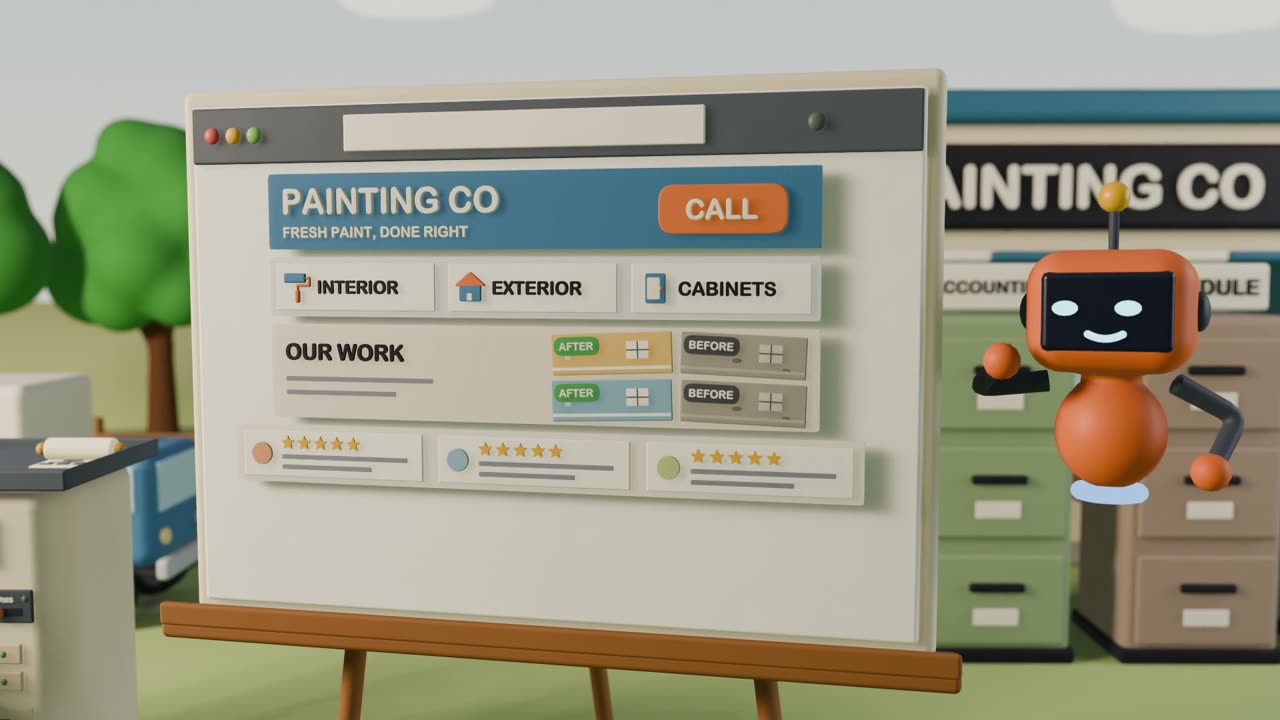
What a website is, from zero
In a 2025 survey of American small businesses by the research firm Clutch, 83% had a website. So the painter, the plumber or the bakery down the road probably has one. When someone finds you, they want three things, fast: what you do, proof you've done it well before, and how to reach you. A good website answers all three, on a phone, at nine at night, while you're off the clock.
A few files
Written in a very strict kind of text, called code, that tells a web browser what to show. This heading. This photo. This button.
A host
A computer that's always on and always online. Your files sit there.
A domain
Your web address. It points people to that computer.
For years, writing those files meant hiring a designer, or fighting with a template. Now you describe your business, and AI writes the files for you. You never have to read the code. You look at the page, and you say what to change.
The seven things your site needs
A small service business doesn't need a big website. One good page does the job, as long as it has these seven things. Write them down: you'll hand that list straight to the AI.
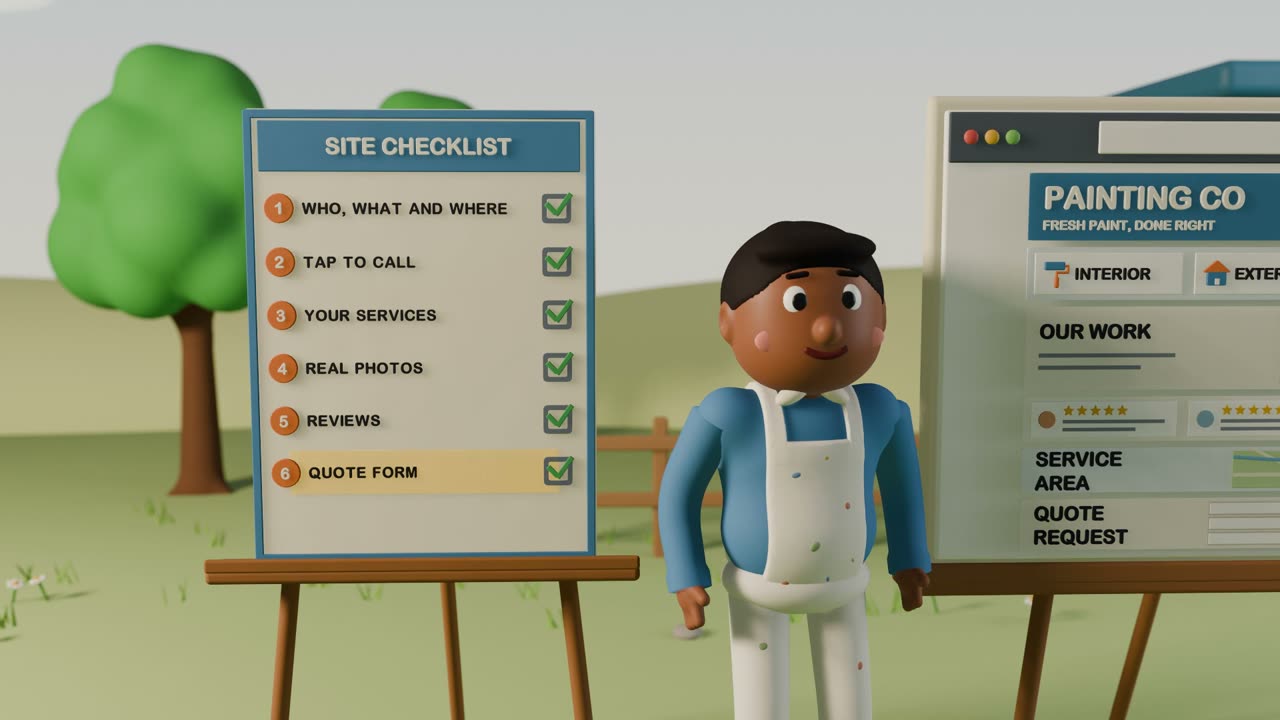
Who you are, what you do, and where
At the top. Dana's says: interior and exterior painting, for homes in and around town.
A phone number people can tap to call
A big call button, right at the top.
Your services, in plain words
Dana's are interior painting, exterior painting and cabinet refinishing.
Photos of your real work
Before and after works best.
Reviews from real customers
Dana used three that customers had emailed her.
A form to ask for a quote
One that lands in your email.
It works well on a phone
That's where most people will see it. Google also uses the phone version of a site when it decides where the site shows up in search.
Worth adding too: the towns you cover. Dana added hers in one of her changes. Google says businesses with complete, accurate information are more likely to show up in local results.
Three ways to build it with AI
From the easiest to the most flexible. Each one below has every step, and what it costs.
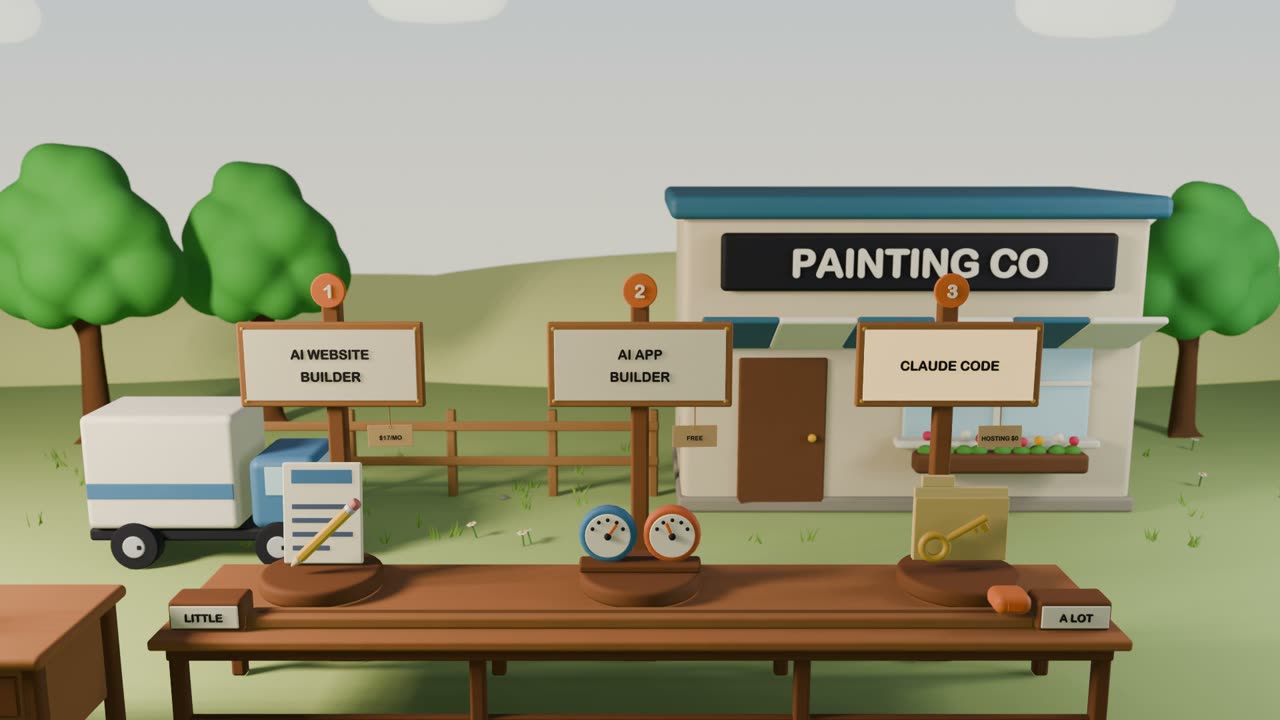
A website builder
Wix, with its AI assistant, Aria. The easiest: it takes care of the hosting, the forms and the security. The steps.
An app builder
Lovable. It writes a custom site from scratch, so it can do things a template can't. The steps.
Route 1: a website builder (Wix)
Wix, Squarespace and GoDaddy all have a website builder with AI built in, and they take care of the hosting, the forms and the security for you. Here's how it works on Wix. Its AI editor is called Wix Harmony, and it comes with every Wix plan, including the free one. The AI assistant inside it is called Aria.
Sign up, and start a new site
Go to wix.com and sign up. Click Create New Site, pick Wix Harmony Editor, then click Let's Go.
Tell Aria about your business
Aria asks what you do, where you work, and what you need, like a quote form. For a painter like Dana: house painting, four people, the towns she covers, and interior, exterior and cabinets.
Pick the extras
Tick the suggested apps you want, like a form or bookings, and click Continue. Choose a domain, or click Skip for now. Then click Go to Dashboard.
Generate the site
Click Design Site, at the top right of the Home page. Read the description Aria wrote, change anything that's off, and click Generate Site. A whole site appears, with pages, pictures and text.
Make it yours
Ask Aria for changes in plain words, like adding a section or changing the colors. Swap in photos of your real jobs. Click Preview to see it on a phone.
Publish
Click Publish, at the top right. You get your live address and a QR code. Changes you save later aren't live until you publish again.
Add your own address, and Google
Upgrade to the Light plan and claim the free domain. Then open the SEO Setup Checklist and click Connect to Google. That connects your site to Google and sends it your sitemap, the list of your pages.
Free to start
Build and publish for free, at an address ending in wixsite.com, with Wix branding and sometimes ads. As of October 2026.
Light, $17 a month
Billed yearly, so $204 a year. It lets you use your own web address, and the domain is free for the first year. As of October 2026.
Quote requests from a Wix form land in your email automatically. For comparison, Squarespace starts at $19 a month, billed yearly, as of October 2026. GoDaddy's AI builder, Airo, starts at about $10 a month on its Starter plan, billed yearly, as of October 2026.
The trade-off: it's quick and solid, but you build inside what the builder allows. Wix also says its AI can give unexpected or inaccurate results, so read every page before you publish.
Route 2: an app builder (Lovable)
An AI app builder like Lovable has no template underneath. You describe what you want, and it writes a custom site from scratch, so it can do things a template can't.
Describe it, then sign up
Go to lovable.dev and type what you want into the box. Then sign up, with your email or Google.
Watch it build
The chat is on the left, and the live page is on the right.
Ask for changes in plain words
For a painter, that could be an instant estimate: a customer picks the number of rooms, and sees a price range right away.
Publish
Click Publish, at the top right, next to Share. Check the Website URL, then click Publish again. Your site is live, for free, at an address ending in lovable.app.
After later changes, publish again
New changes stay offline until you click Publish, then Publish changes. A dot on the Publish button means there's something you haven't published yet.
Your own address
On the Pro plan, open your project's Settings, then Domains. Click Buy new domain, or Connect domain for one you already own, and use the automatic setup.
Free to start
Publish at an address ending in lovable.app, with an "Edit with Lovable" badge. Every change you ask for uses credits, and the free plan gives you 5 a day, up to 30 a month. As of October 2026.
Pro, $25 a month
Or $250 a year. Your own web address, and no Lovable badge. As of October 2026.
The trade-off: a form that emails you takes a little more setup here than on a website builder. Lovable's docs say its app emails need a paid plan and a verified email domain.
Route 3: Claude Code, with Netlify
Claude Code is Claude with hands. It works on your own computer, inside a folder you choose. It can open the files in that folder, write new ones, and check its own work. It's the most flexible route, and it's the one Dana already had.
Set it up in 5 steps
None of them involve code.
Install the Claude app
Go to claude.com/download and install it. It works on Mac and Windows.
Sign in, on a plan with Claude Code
The free plan doesn't include Claude Code. The cheapest plan that does is Pro, at $20 a month, or $17 a month if you pay for the year ($200 up front). As of October 2026.
Click Code
It's at the top of the app's sidebar.
Open a folder called Website
Make a folder called Website, the normal way. Under the message box, choose Local, then Open folder…, and pick it.
Set the mode to Plan
So it shows you what it means to do before it does it.
Build it
Describe the site, and Claude Code writes its files into your folder. To look at it, double-click the file called index.html, and it opens in your web browser. Ask for changes until it's right. Every request Dana typed is below.
Put it online with Netlify Drop
Make a free Netlify account first
At netlify.com. A site dropped without an account sits behind a temporary password until you claim it, and an unclaimed site gets deleted.
Drag your folder onto the page
Go to app.netlify.com/drop and drag your Website folder onto it. A few seconds later, it's live, at an address ending in netlify.app.
To update it later
Under Production deploys, drag in the updated folder.
Get quote requests by email, with Netlify Forms
Ask for a form set up for Netlify Forms
Dana put that in her build request, so Claude Code set the form up the way Netlify needs it.
Turn on form detection
In Netlify, open Forms and click Enable form detection. It starts working with your next upload.
Drop the folder in once more
Under Production deploys, drag the Website folder in again.
Add your email
In Forms, open Submission notifications, click Add notification, and choose email. Type the address the quote requests should go to.
Send yourself a test
Fill in the form on your live site, and check your inbox. Dana's test quote request landed in hers.
Claude Pro, $20 a month
Or $17 a month, billed yearly. As of October 2026.
Netlify, free
The free plan includes your own web address, and form submissions are free. Its monthly allowance is plenty for a small site like this. As of October 2026.
The trade-off: a few more steps to set up. In return, this route gives you the most control: you own every file, and hosting costs nothing.
Which route to pick
One question: after it's live, how much do you want to do yourself?
You want it done today
And you'd like to edit it like a document. A website builder. Route 1.
You want something a template can't do
Like an instant estimate, right on the page. An app builder. Route 2.
You want to own every file
You already use Claude Code, and you'd like to pay little or nothing for hosting. Claude Code. Route 3.
All three can look professional. The best one is the one you'll actually keep up to date.
Dana already uses Claude Code. It built her a quote calculator. So she picks route three.
Every request Dana typed
Dana's site, start to finish, with Claude Code. Copy her requests, then swap in your own business, your own services and your own towns.
1. Fill the folder
In her Website folder, she put photos of ten finished jobs, before and after, and three reviews that customers emailed her.
2. The build request
Then she typed:
Build a one-page website for Dana's Painting Co. We do interior and exterior painting and cabinet refinishing, for homes in and around town. Use the before and after photos in this folder, and the three reviews. Put a big call button with our number at the top, and a form to ask for a quote, set up for Netlify Forms. Make it clean and friendly, and make sure it works well on a phone. And add a sitemap.
Claude Code showed its plan first: the sections, in order. She approved it, and a minute later the page was open in her browser. The sitemap at the end matters later, for getting found on Google.
3. Three changes
The first version was close. She asked for three changes:
Put the before and after photos side by side. Keep the call button stuck to the bottom of the screen on phones. And add the towns we drive to.
Name your own towns in that last line.
4. The check
Then one more request:
Check that the phone number and email are the same everywhere on the page, and check it on a small screen.
It found one spot where the phone number had a wrong digit, and fixed it.
5. Put it online
She dragged the Website folder onto Netlify's drop page, and it was live. Then she turned on form detection, dropped the folder in once more, and added her email under Submission notifications. She sent herself a test quote request, and it landed in her inbox. The Netlify steps.
Your own web address
The temporary address works, but customers trust a name. Your own web address is called a domain. A .com costs about $11 to $20 a year, as of October 2026. You can buy one from a registrar, a company that sells them, like Cloudflare or Porkbun, or right inside the builder or host you use. On a yearly plan, Wix and Squarespace include the first year free.
Buy it inside your host, and it connects itself
Dana bought her company's name as a .com, right inside Netlify. Under Domain management, she clicked Add a domain, then Buy a new domain.
Or connect one you already own
Pick the option to connect a domain you own. In Netlify, that's Add a domain you already own. In Lovable, it's Connect domain. Some builders sign in to your registrar for you. If not, the host shows you two or three settings to copy over to your registrar.
Give it time
Allow up to 48 hours for it to work everywhere. Lovable says up to 72. The secure https part is set up for you.
Check the renewal price before you buy. Renewals are at the seller's price, which can differ from the first year's.
Getting found on Google
Here's the step most small businesses skip. A Google Business Profile is the listing that shows up on Google Maps and in search, with your name, your stars, your photos, and buttons to call you, get directions, or visit your website. It's free.
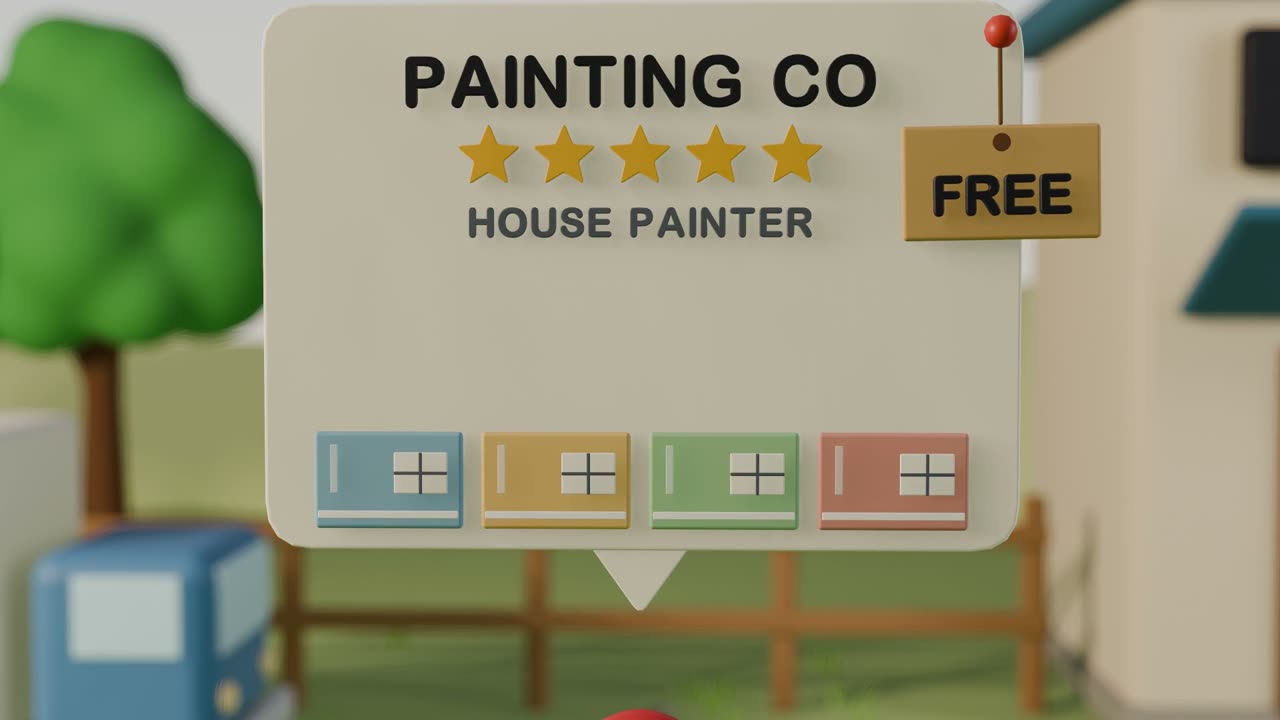
Set up your Google Business Profile
Start your profile
Go to business.google.com, sign in with a Google Account, and click Create your profile.
Name and category
Type your business name, pick a category, like house painter, and click Next. If someone else already verified your business, you can request ownership.
Do customers visit you?
Dana's customers don't visit her office, so when it asks if customers visit a location, she says No. Then she lists the towns she covers instead: up to 20, within about two hours' drive. A business without a storefront keeps its address hidden.
Phone and website
Add your phone number and your new website. Click Next, then Finish.
Prove it's yours
Google checks that the business is really yours. Pick a way: a short video recording (Google recommends it, if it's offered), a phone call or text, email, a live video call, or a postcard with a code (most arrive within 14 days). Google's review can take up to 5 business days. Your profile only shows up after that.
Add photos, and ask for reviews
Add photos of real jobs, and ask happy customers for a review. In Google's words, "Businesses with complete and accurate info are more likely to show up in local search results," and "More reviews and positive ratings can help your business's local ranking."
One profile per business per area: Google can suspend an account that makes more.
Add your site to Google Search Console
One more free step. Search Console is Google's tool for website owners. You tell it about your site, and hand it your sitemap: the list of your pages, which Claude Code made for Dana.
Add your site
Go to search.google.com/search-console. In the property selector, click + Add property.
Prove it's yours
Choose Domain, which you prove with a setting where you bought your domain, or URL prefix. Then verify, or click Verify later. Its numbers start showing up after a few days.
Submit your sitemap
Open the Sitemaps report, paste your sitemap's address into Add a new sitemap, and click Submit. Not sure of the address? Ask Claude Code.
Wix sends it for you
The Connect to Google step in its SEO Setup Checklist sends your sitemap. It needs a paid plan and your own domain.
Squarespace makes one
It's at your address followed by /sitemap.xml.
Lovable doesn't always
Ask it for one.
Claude Code makes one when you ask
That's why Dana put it in her build request.
Then give it time. A new site can take a few days to a few weeks to show up in Google. To check, search Google for site: followed by your address, like site:yourcompany.com.
A few weeks later, the homeowner from the start of the episode searched again. This time, Dana's business showed up, with her stars, her photos, and a button to her website. She tapped call, and Dana's phone rang.
Get the free checklist: the seven things, every step, and every request Dana typedWhere it stops
A website built with AI is still a website, and it has limits worth knowing.
AI makes mistakes
Read every price, phone number and promise before the site goes live, the way Dana did.
A website needs care
New photos, new reviews, this season's offer. Pick one day a month to update it.
Free plans have limits
On Lovable, every change uses credits. Netlify's free plan has a monthly allowance, and if it runs out, Netlify pauses your site and visitors see "Site not available."
Real software
A website is the front door, not the whole shop. Online booking that checks your real schedule, deposits paid online, a page where customers track their job, or quote requests that flow straight into the software you run your jobs in: that's real software, and it has to work every day without fail. That's the time to bring in an engineer.
The free checklist: your website, start to finish
The seven things, the steps for each route, your own address, getting found on Google, and every request Dana typed, ready to copy, on one page. Print it, or keep this page open.
The seven things
Tick each one off as your site gets it.
Worth adding too: the towns you cover.
The steps, route by route
Pick one. Prices as of October 2026.
Wix
- At wix.com, sign up. Create New Site, Wix Harmony Editor, Let's Go.
- Tell Aria about your business.
- Tick the apps you want. Continue, Skip for now, Go to Dashboard.
- Design Site. Check the description. Generate Site.
- Ask Aria for changes. Add real photos. Preview on a phone.
- Publish.
- Upgrade to Light and claim the free domain. SEO Setup Checklist, Connect to Google.
Free to start. Light is $17 a month, billed yearly, with the domain free for the first year, as of October 2026.
Lovable
- At lovable.dev, type what you want, then sign up.
- Ask for changes in the chat. Watch the page on the right.
- Publish. Check the Website URL. Publish.
- After changes: Publish, Publish changes.
- Your own address: Settings, Domains, then Buy new domain or Connect domain.
Free to start, with 5 credits a day. Pro is $25 a month for your own address, as of October 2026.
Claude Code + Netlify
- Install the Claude app from claude.com/download. Sign in on Pro.
- Code. Local, Open folder…, your Website folder. Mode: Plan.
- Describe the site. Double-click
index.htmlto look. - Make a free Netlify account. Drag the folder onto app.netlify.com/drop.
- Forms, Enable form detection. Drop the folder in again.
- Forms, Submission notifications, Add notification: your email. Send a test.
Claude Pro is $20 a month, or $17 billed yearly. Netlify is free. Both as of October 2026.
Your own address
Getting found on Google
Every request Dana typed
In Claude Code, in this order. Swap in your own business, your own services and your own towns.
Build a one-page website for Dana's Painting Co. We do interior and exterior painting and cabinet refinishing, for homes in and around town. Use the before and after photos in this folder, and the three reviews. Put a big call button with our number at the top, and a form to ask for a quote, set up for Netlify Forms. Make it clean and friendly, and make sure it works well on a phone. And add a sitemap.
Put the before and after photos side by side. Keep the call button stuck to the bottom of the screen on phones. And add the towns we drive to.
Check that the phone number and email are the same everywhere on the page, and check it on a small screen.
The links
The official pages for each step.
Sources
Where the facts in the episode come from, checked in October 2026. The main links for each step are in the checklist above.
Ready for more than a front door?
That's what Benmore's forward deployed engineers do. They build inside your business: they find the work worth automating, and build it with AI, properly.
Talk to Benmore