Claude Code Skills, Subagents, MCP and Plugins, Explained From Zero
Everything from episode 10 in one place: what Claude Code is and how it works inside, its limited desk space, the five setup steps, and each piece in plain words with how to set it up: the notes file, skills, subagents, MCP and connectors, plugins and hooks. Plus all of them on one of Dana's jobs, and where it stops.

What Claude Code is
AI like Claude learned by reading an enormous amount of text. Ask it something and it writes back one word at a time, always guessing the most likely good next word. Claude is made by a company called Anthropic. In the chat version, you type and it types back.
Claude Code is Claude with hands. It works on your own computer, inside a folder you choose. It can open the files in that folder, read them, write new ones, run them, and check its own work. That's why "code" is in the name: software is just text written in a very strict way, called code. So it can build you a tool. But it can also do real work in your files: sort them, total them, compare them, and write from them.
You never have to read any code. You describe what you want, look at what it made, and say what to change.
The short version
Each of the four pieces gives Claude Code something it doesn't have out of the box.
A skill
Teaches it one of your routines, written down once, so it does it your way every time. More on skills.
A subagent
A helper it sends off to do one part of the work, on a desk of its own. More on subagents.
MCP
Lets it reach your other apps, like your email or your accounting. More on MCP.
A plugin
A box with all of that inside, added in one step. More on plugins.
Plus one more you'll hear about, called hooks: rules that run every time.
How it works, inside
What happens after you ask Claude Code for something. It works in a loop, one careful step at a time.
It looks
At the files in your folder.
It makes a plan
The steps it means to take.
It acts
It writes a file, or runs one.
It checks the result
If something's off, it goes around again, until the task is done.
The four modes
You decide how much it can do on its own. In Anthropic's words:
Manual
It "asks before editing files or running commands."
Plan
It "proposes an approach without editing any files."
Accept edits
It "auto-accepts file edits," so it changes files without asking each time.
Auto
"A classifier reviews actions in the background and blocks the risky ones instead of asking you."
Its desk space
Claude Code has a limited working memory. Picture it as desk space. Everything it reads goes on the desk: every file, every message, every result. The desk is big, but it isn't endless. When it fills up, Claude Code makes room by summarizing the older things, and small details can get lost.
So the best setups keep the desk clear, with only what the current task needs. Skills and subagents exist for exactly that reason.
Set it up in 5 steps
None of them involve code.
Install the Claude app
On your computer, go to claude.com/download and install the Claude app. It works on Mac and Windows.
Sign in, on a paid plan
Open it, and sign in or make an account. Claude Code needs a paid plan: Pro, Max, Team or Enterprise. The cheapest is Pro, at $20 a month, or $17 a month if you pay for the year ($200 up front). Max starts at $100.
Click Code
It's at the top of the app's sidebar.
Open your folder
Make a folder for your business files, the normal way. In the row under the message box, click the first button, the environment selector, and pick the top entry under Local, so it works right on your own computer. Then click the folder button beside it, choose Open folder…, and pick your folder.
If you followed episode 7: that button used to be called Select folder.
Set the mode to Plan
The mode is in the same row. Plan "proposes an approach without editing any files," so you see what it means to do before it changes anything.
Prefer the terminal?
You may hear that Claude Code runs in a terminal: a plain window where you type instructions instead of clicking. That version exists too, and the app does the same job with buttons. If you'd rather use the terminal, installing it is one line. Copy the one for your computer, paste it into the terminal, and press Enter.
curl -fsSL https://claude.ai/install.sh | bash
irm https://claude.ai/install.ps1 | iex
Both lines are from Anthropic's setup page.
The notes file
Before the four new pieces, there's one you already have. Every session with Claude Code starts fresh, so there's a notes file in your folder that it reads at the start of every session. It's called CLAUDE.md, and it's plain writing: in Anthropic's words, "instructions you write to give Claude persistent context." Claude Code also keeps notes of its own, "notes Claude writes itself based on your corrections and preferences." When Dana corrects it, it remembers for next time.
Set it up
Write what's true every time
In plain words, in the file called
CLAUDE.mdin your folder. Dana's is below.Keep it short
Everything in it sits on the desk the whole time. So a long, step-by-step routine you only need on Fridays belongs in a skill instead.
It works in the app and the terminal
The desktop app and the terminal read the same
CLAUDE.md.
Dana's says:
We're a four-person house-painting company. Prices are in US dollars. Every quote includes ceilings and trim. Emails are short and friendly, and signed Dana.
Skills
A skill is one of your routines, written down once, so Claude Code does it your way every time. It's a small folder. Inside is a page of instructions, a file called SKILL.md, with a name and a one-line description of when to use it, plus any files the routine needs, like a template, a checklist or a price list. Claude Code doesn't read every skill at the start. In Anthropic's words, it sees "each skill's name and one-line description," reads the instructions "when your request matches," and opens the extra files "only when needed." So you can have dozens of skills, and the desk stays clear.
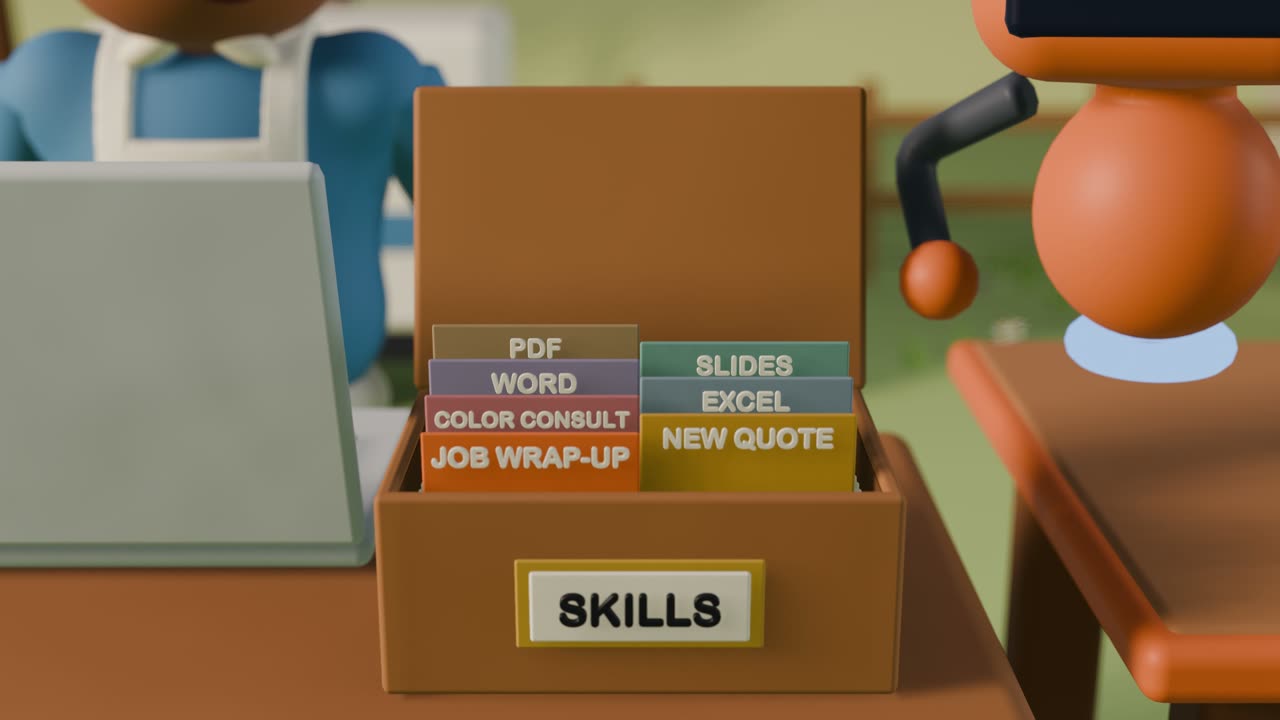
Anthropic's ready-made skills
For Excel spreadsheets, Word documents, PowerPoint decks and PDF files. In the Claude app, they're under Customize, then Skills. Skills are included on Pro, Max, Team and Enterprise.
An open standard
Skills follow the Agent Skills specification, an open standard. So a skill written for Claude also works in other tools that adopt it.
Set it up: your first skill
Do the task once
Pick a routine you repeat, and do it with Claude Code. Dana's was her wrap-up after every finished job: a thank-you email to the customer, a list of what to invoice, and a request for a review.
Fix what's off
Her first try was close. She asked for two changes: the line about the two-year warranty, and the review link at the bottom.
Ask it to save it as a skill
Claude Code writes the skill's folder for you, and shows you the instructions.
Read the instructions
Change anything that's off. Dana changed one line.
Use it
Describe the task, and Claude Code picks the skill that matches. Or type / in the message box, or click + and then Slash commands, and pick it from the list.
Every request Dana typed to make and use her skill is in the cheat sheet, ready to copy.
Subagents
A subagent is a helper that Claude Code sends off to do one part of the work, on a desk of its own. Each one runs "in its own context window," with its own instructions and only the tools it's allowed to use. It does its part and hands back a short summary, and that summary is all that lands on the main desk, not every page the helper read. Several can work at the same time.
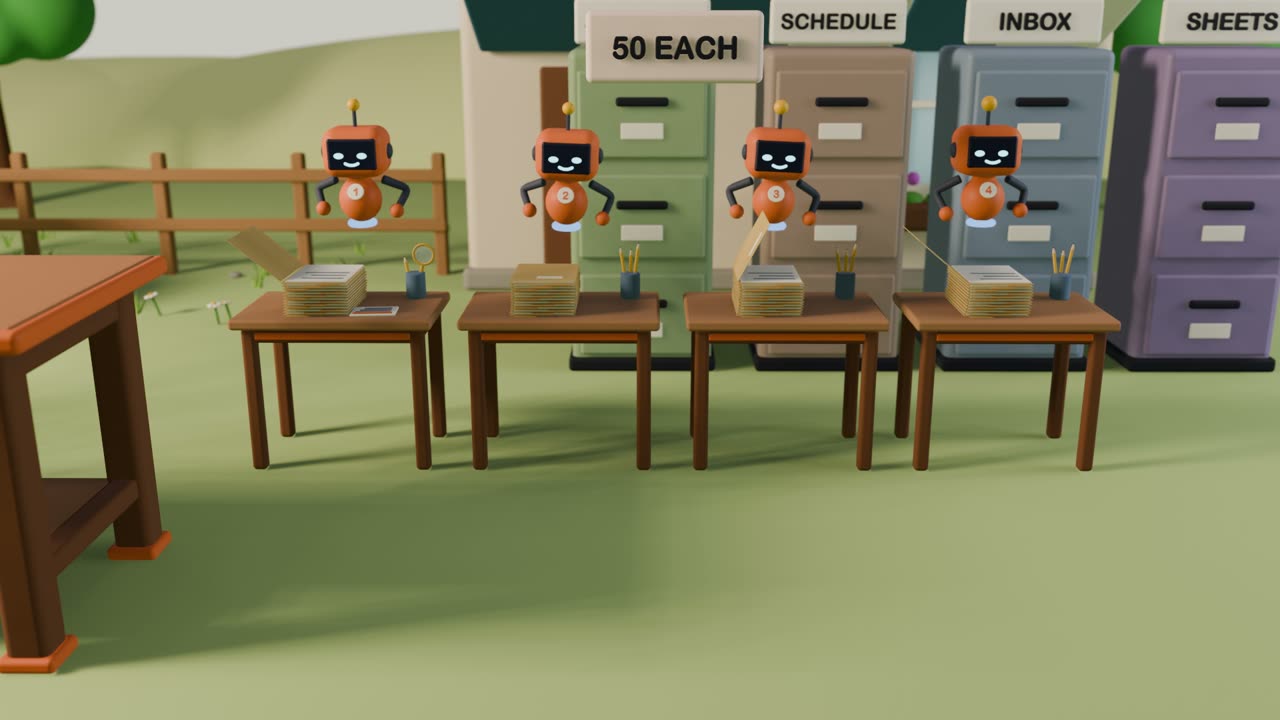
Dana wanted to know which kinds of jobs make her the most money per day. The answer was in last year's 200 job folders, too many for one desk. So Claude Code split the work: four helpers, 50 folders each, all working at the same time. Each brought back one short summary. Interior jobs with trim make the most per day. Exterior jobs over two stories make the least, because of the ladder setup.
Set it up
Let it send helpers on its own
Claude Code "automatically delegates tasks based on the task description in your request." Or ask it to use helpers for a big job.
Make your own
Describe the helper you want. In Anthropic's words, "ask Claude to write it for you, or write the file yourself."
Limit what it can touch
Say which tools it may use. Dana's quote checker can read files, but it can't change them.
Put it to work
Now, before one of Dana's quotes goes out, a fresh pair of eyes checks it against her price list and her notes file.
Dana's request for her quote checker is in the cheat sheet, ready to copy.
MCP and connectors
So far, everything happens inside one folder. MCP is how Claude Code reaches the rest of your business. It stands for Model Context Protocol, "an open source standard for AI-tool integrations." Think of it as one plug shape that every app can offer, so an AI can connect to that app's information, and act in it, without custom wiring for every pair. In the Claude app, these plugs are called connectors.
Set it up
Open Connectors
In the Claude app, click Customize in the sidebar, then Connectors.
Click Discover
Then pick the app.
Click Connect to Claude
Sign in to that app, then review and approve. Dana connected Gmail, Google Calendar, Google Drive and QuickBooks.
Decide what each one can do
Set each group of tools, or a single tool, to Always allow, Needs approval or Blocked. Dana lets it look things up freely, and anything that sends needs her approval. When it asks, choose Allow once or Always allow.
It's in Claude Code too
The connectors you add in the Claude app are available in Claude Code, in the terminal and in cloud sessions, when you sign in with your Claude account.
With them connected, Dana's job wrap-up skill saves the thank-you email straight into her Gmail drafts, and checks in QuickBooks that the customer's deposit came in.
Plugins
A plugin is a box with everything inside, added in one step. In Anthropic's words, "A plugin packages skills, MCP connectors, and commands and agents so you can add them to Claude as one unit." In Claude Code, a plugin can carry hooks too. Each plugin is saved to your account, so it's also there in Cowork and in Claude Code without installing it again.
Add one
Open Plugins
Click Customize, then Plugins.
Look under Discover
Select a plugin to read what it contains.
Click Add
It's saved to your account, ready in Cowork and Claude Code.
Make your own
Click Add
Under Customize, then Plugins, click Add.
Choose Create with Claude
Claude builds the plugin with you, in a conversation. Dana bundled her job wrap-up skill and her quote checker into one plugin, Painting Co Toolkit.
Share it with your team
On the Team and Enterprise plans, you can share a plugin with specific people. Dana could hand hers to her crew leads.
Claude for Small Business
Anthropic's plugin for running a small business: ready-made workflows like chasing unpaid invoices, closing out the month and planning payroll, with connectors for tools like QuickBooks, PayPal and HubSpot. It's built for Cowork, the part of the Claude app that does tasks for you. In Anthropic's words, "Claude does the work; you approve before anything sends, posts, or pays." Episode 8 shows it.
Which plugins get reviewed
Anthropic reviews the plugins in its directory: every version gets automated validation and a security scan, and a person reviews a new listing before it goes live. That review doesn't cover a plugin you add from a marketplace URL or upload yourself, so Anthropic's advice is to add those only from sources you trust.
Hooks
Notes and skills are instructions that Claude Code follows. A hook is a rule that happens every time, no matter what. It's a small command that runs by itself at a set moment: when Claude Code edits files, finishes a task, or needs your input. Claude Code doesn't decide whether to run it. It just runs. Anthropic calls that "deterministic control: certain actions always happen."
Only Dana changes her prices
Claude Code can never change her price list. If it tries, the edit is blocked, and "Claude receives feedback explaining why the edit was blocked."
A ping when it's waiting
A notification on her laptop whenever Claude Code needs her attention, so she can step away from the screen.
Set it up
Describe the rule
Hooks are the most technical piece here, but you don't have to write one yourself. In Anthropic's words, "You can also ask Claude to write the hook for you by describing what you want."
It works in the app and the terminal
Hooks and skills defined in settings apply to both the desktop app and the terminal.
Or get them in a plugin
In Claude Code, a plugin can carry hooks too.
One job, all together
Here's what it looks like when all the pieces work together.
One line
Friday afternoon, the Harbor job is finished. Dana types: "Wrap up the Harbor job."
The skill
The request matches her job wrap-up skill, so Claude Code opens it, and follows her steps.
The connectors
It pulls the crew's photos from Google Drive, and checks in QuickBooks that the deposit came in. It writes the thank-you email and the invoice list.
The subagent
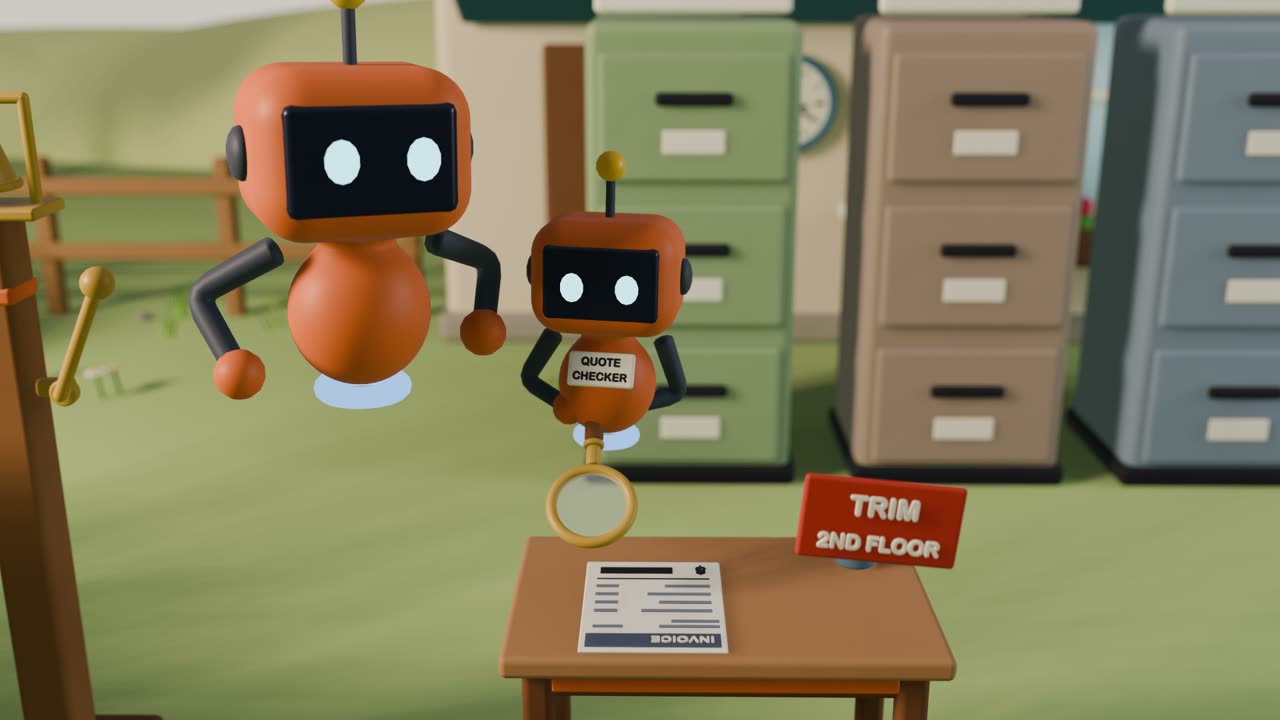
It hands the numbers to the quote checker, which finds one thing: the trim on the second floor wasn't on the invoice. Fixed.
The hook
Dana's laptop pings. The email is waiting in her Gmail drafts. She reads it, and presses send herself.
Ten minutes, and most of that was reading.
Get the free cheat sheet: which one to use, and every request Dana typedWhere it stops
All of this makes Claude Code far more useful. It still has limits worth knowing.
It still makes mistakes
A skill makes it consistent, not perfect. Read what comes back, especially anything with numbers that goes to a customer.
Helpers use your plan
Every helper, and every connector it uses, takes up part of your plan. A big task with lots of helpers uses more.
Connectors need an app that offers one
Connectors only reach apps that offer one.
Real software
If your business runs on software that doesn't have a connector, or work has to run every day without fail, like keeping your schedule, your books and your customer records in sync, that's real software. That's the time to bring in an engineer.
The cheat sheet: which one do I use?
Which piece to reach for, every request Dana typed, ready to copy, and Anthropic's docs for each piece, on one page. Print it, or keep this page open.
It's true every single time
The notes file. Like your prices being in dollars.
It's a routine you repeat
A skill. The same steps, your way.
The work is big, splits into parts, or needs a second pair of eyes
A subagent. Helpers can work on the parts at the same time.
It needs another app
A connector. That's MCP. Like your email or your accounting.
You want a whole set at once
A plugin. Also the way to hand your setup to your team.
It must happen every time, with no exceptions
A hook. Like keeping your price list off-limits.
Start with one. For most businesses, the first skill is the one that pays off fastest.
Every request Dana typed
Copy them, then swap in your own jobs, your own templates and your own rules.
1. Do the task once
After a finished job, with the crew's notes and the final measurements in her folder:
The Miller job finished today. Here are the crew's notes and the final measurements. Write the thank-you email, list what to invoice, and ask for a review.
2. Ask for changes
The first try was close. Her two changes:
Add the line about the two-year warranty, and put the review link at the bottom.
3. Save it as a skill
Then she typed:
Save how we just did this as a skill called job wrap-up. Put my email template and the warranty wording in it.
Claude Code wrote the skill's folder and showed her the instructions. She read them and changed one line.
4. Use the skill
The next Friday:
Wrap up the Harbor job.
5. Make a subagent
A fresh pair of eyes for every quote:
Make a subagent called quote checker. It reads each new quote, compares it to the price list and the notes file, and reports anything missing, like a ceiling or the trim. It can read files, but it can't change them.
The docs
Anthropic's own pages, for the setup and for each piece.
Sources
Where the facts in the episode come from. The docs for each piece are in the cheat sheet above.
Ready to automate more than a routine?
That's what Benmore's forward deployed engineers do. They build inside your business: they find the work worth automating, and build it with AI, properly.
Talk to Benmore