How to Use Claude Code Effectively: 10 Tips for Beginners
Everything from episode 13 in one place: what Claude Code is, the five-step setup in the Claude app, and ten tips in the order you'll need them, each one shown on a real job: the crew lead's schedule app, rebuilt one habit at a time. Plus where it stops, and a free cheat sheet with all ten tips and every request the crew lead typed, ready to copy.
Same tool, same price
Last week, Dana's crew lead tried Claude Code for the first time. He typed one line, "Make me a schedule app", pressed Enter, and went to get a coffee. He came back to an app that didn't know a single one of their jobs, closed the laptop, and said AI is overrated.
Dana uses the same Claude Code, on the same $20 plan. It built her a quote calculator that her whole crew uses every day.
And the difference isn't being good with computers. Anthropic, the company that makes Claude, looked at about 400,000 Claude Code sessions. People in every major line of work got done what they set out to do about as often as software engineers. Managers, slightly more often. In Anthropic's words, "the ability to steer Claude toward success comes more from command of a domain than from the ability to write code."
So the difference is habits. Ten of them, and none of them involve code.
Claude Code, from zero
AI, the kind everyone's talking about, is a program that learned by reading an enormous amount of text. Ask it something, and it writes back one word at a time, always guessing the most likely good next word. It's very good at guessing.
Claude is one of these AIs, made by Anthropic. In the chat version, you type, and it types back.
Claude Code is Claude with hands. It works on your own computer, inside a folder you choose. It can open the files in that folder, write new ones, run them, and check the result. You never have to read any code. You describe what you want, you look at what it made, and you say what to change.
Its loop
It works in a loop. If something's off, it goes around again.
It looks
At the files in your folder.
It makes a plan
What it means to do.
It acts
It writes a file, or runs one.
It checks
The result. And if something's off, it goes around again.
Its desk space
It has a limited working memory. Picture it as desk space. Everything it reads goes on the desk: every file, every message, every result. The desk is big, but it isn't endless. Keep that picture in mind, because a few of these tips (the notes file, a clear desk, and skills) are really about that desk.
Set it up in 5 steps
Here's the whole setup, from nothing.
Install the Claude app
On your computer, go to claude.com/download and install the Claude app. It works on Mac and Windows.
Sign in, on a paid plan
Open it, and sign in or make an account. Claude Code needs a paid plan. The cheapest one that includes it is Pro, at $20 a month, or $17 a month if you pay for the year ($200 up front).
Click Code
It's at the top of the app's sidebar.
Open your folder
Make a folder for the project, the normal way. Under the message box, choose Local, so it works right on your own computer. Then click the folder button beside it, choose Open folder…, and pick that folder.
Set the mode to Manual, for now
In the same row, there's the mode. There are four: Manual, Plan, Accept edits and Auto. Manual "asks before editing files or running commands," so it asks before every change. Tip three changes it.
Prefer the terminal?
You may hear that Claude Code runs in a terminal, a plain window where you type instructions instead of clicking. That version exists too, and every tip here works there as well, but the app does the same job with buttons. Where a tip works differently in the terminal, it says so below. The one-line terminal install is on episode 10's page.
The ten tips
In the order you'll need them, each one shown on the crew lead's schedule app. The last one changes the most.
Tip 1: give it your real stuff
The crew lead's first try had nothing to work from. Claude Code can only see what's in its folder, so it guessed: a schedule app for some company, somewhere.
Fill the folder first
Before you ask for anything. For a schedule, that's this week's jobs, the list of who's on the crew, and a photo of the whiteboard they use now. One real example tells it more than a page of description.
Say what done looks like
In plain words. Not "Make me a schedule app", but the request below.
If it's hard to describe, show something close
A screenshot of an app you like, or a sketch on paper, photographed with your phone. In the app, drag it into the message box, or add it with the + button.
The crew lead's request:
A page my four painters check on their phones each morning. Today's job, the address, and who's on it. Like the whiteboard in the photo.
In the terminal, drag the picture into the window, or paste it with Ctrl+V (Cmd+V in iTerm2, Alt+V on Windows).
Tip 2: write it a notes file
Every session with Claude Code starts fresh. It doesn't remember yesterday's conversation. So it reads a notes file in your folder at the start of every session. It's called CLAUDE.md, and it's plain writing.
1. Ask for a first draft
You don't have to write it from scratch. Ask Claude Code to create one, and it looks through your folder and writes a first draft:
Create a CLAUDE.md with instructions for this project.
2. Add what's true every single time
The crew lead added:
We're a four-person painting company. Crews start at seven. Nobody works Sundays. Keep everything simple enough to read on a phone.
3. Add to it as you go
Whenever you catch yourself correcting the same thing twice, say:
Add this to the notes file.
Claude Code also keeps notes of its own as you correct it.
Keep it short. Everything in it sits on the desk the whole time. Anthropic's advice is to ask, for every line: would taking this out cause a mistake? If not, cut it.
The app and the terminal read the same CLAUDE.md.
Tip 3: let it plan before it builds
Set the mode to Plan, in the row under the message box. In Plan mode, Claude Code reads, and thinks, and writes out exactly what it means to do. It changes nothing until you approve the plan.
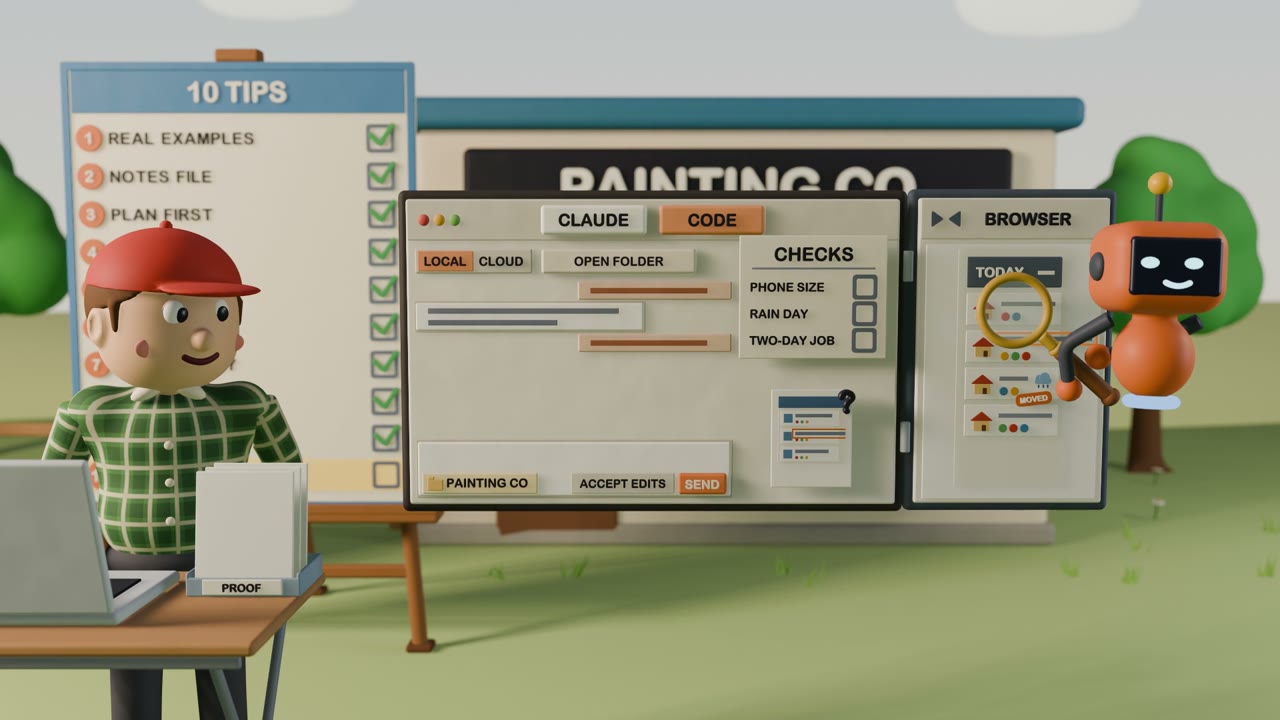
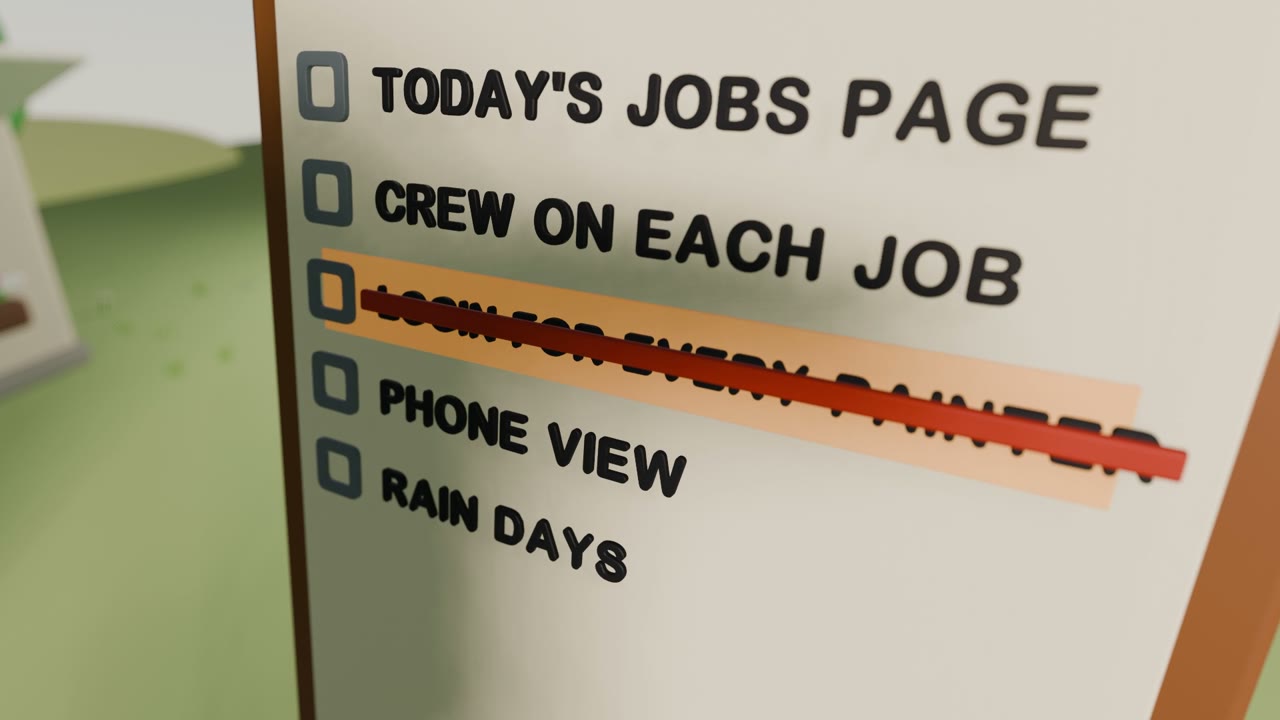
This is where most mistakes get caught, for free. The crew lead reads the plan and spots one right away: a login for every painter. They don't need that. He says so, and the plan gets simpler before a single file exists.
When the plan looks right, approve it, and it starts building.
Skip it for small changes
For a small change, one you could describe in a single sentence, skip the plan and just ask.
Changing the mode
In the app, use the mode selector under the message box, or press Cmd+Shift+M (Ctrl+Shift+M on Windows). Shift+Tab changes the mode only in the terminal.
Tip 4: let it ask you questions
You know your business. Claude Code doesn't. And it's built to keep going rather than stop and ask, especially in Auto mode. So ask it to ask.
End your request with:
Before you start, interview me. Ask me anything you need to know.
It comes back with questions, often as a short list of choices to pick from, with room to type your own answer. The crew lead's were: What happens on a rain day? Do some jobs run two days? Who's allowed to change the schedule?
Each answer is one less thing it has to guess. Anthropic's own guide suggests this for anything bigger than a quick fix: let it interview you, then have it write the answers down as the plan.
Tip 5: build it in small pieces
Ask for the whole thing at once, and you get one big tangle that's hard to check. Ask for one piece, try it, then ask for the next. The crew lead's four pieces, each one tried before the next:
Today's jobs
Just today's jobs, on one page. He opens it, and it works.
The crew
Then the crew names.
The phone view
Then the page on the painters' phones.
Rain days
Then what happens when it rains.
When something breaks, he knows exactly which step broke it, because it's the one he just added. And every working step is a safe place to come back to.
Tip 6: keep the desk clear
Remember the desk. In one long conversation, everything piles up: every file, every message, every attempt that didn't work. When the desk fills, Claude Code makes room by summarizing the older things, and small details can get lost.
Give each task its own conversation
When the schedule is done and the crew lead wants to work on something else, he clicks + New in the sidebar (or presses Cmd+N on a Mac, Ctrl+N on Windows) and starts a fresh session. The notes file comes along. The clutter doesn't.
Corrected it twice? Start fresh
If you've corrected the same thing twice and it's still wrong, the desk is full of attempts that didn't work. Start a new session, with a better request. Anthropic's guide says a clean start almost always beats a long session full of corrections.
A long task? Fold the desk down
If one task has simply run a long time, type /compact in the message box. It folds the desk down to a short summary, and you keep going.
To see how full the desk is, type /context in the message box. In the terminal, /clear starts a fresh conversation.
Tip 7: steer early, and show, don't describe
You don't have to wait for Claude Code to finish. The moment you see it heading the wrong way, click stop, or press Escape. It keeps the work it's done so far, and you tell it what to change.
For a small nudge, you don't even have to stop it: type your correction and press Enter, and it reads it before its next step.
And when something looks off, show it. Take a screenshot, and drag it right into the message box. Tuesday's address runs off the edge of the crew lead's phone screen, so he drags in his screenshot and types:
The addresses are cut off on my phone, like this.
That beats a whole paragraph. Keep the screenshot in mind: it comes back in tip ten.
Tip 8: be brave, because you can undo
Claude Code keeps track of the changes it makes to your files. If you don't like where things went, just say:
Undo that.
It puts the files back.
In the terminal
There's a rewind menu too. With the message box empty, press Escape twice (or type /rewind), pick an earlier message, and your files go back to how they were at that point.
The one limit
Undo covers the files Claude Code edited. It can't take back anything that already left your computer, like an email that was sent, or a change in another app. That's what Manual mode and Plan mode are for: you see those before they happen.
Knowing you can undo changes how you work. Anthropic's own advice is to let it try the risky idea. If it's worse, go back, and try another way.
Anthropic describes this as quick recovery within a session. For permanent version history, it points to version control, such as Git.
Tip 9: anything you ask for twice, turn into a skill
A skill is a written routine that Claude Code keeps on a shelf, and pulls out only when the task needs it. So unlike the notes file, it doesn't take up desk space until it's used.
1. Notice the routine
Every Friday, the crew lead asks for next week's schedule from the new jobs. Same steps, every week: rain days first, two-day jobs together, nobody on two sites at once.
2. Ask it to save it
So after the second Friday, he types:
Save how we just did this as a skill, called next week's schedule.
Claude Code writes it, and shows him the steps. He reads them, and changes one line.
3. Use it
Next Friday, he just asks for next week's schedule. Claude Code sees the request matches, opens the skill, and follows the same routine, the same way, every time.
Type / in the message box (or click +, then Slash commands) to see every skill you've made. Skills on your Claude account are under Customize, then Skills. More on skills in episode 10.
Tip 10: give it a way to check its own work
The tip from the start of the episode, and the first one in Anthropic's own guide.
Claude Code works in that loop: plan, act, check. But it can only check against something. Without a check it can run, it stops when the work looks done, and you become the checker: every mistake waits for you to find it. Give it a real test, and it keeps going until it passes.
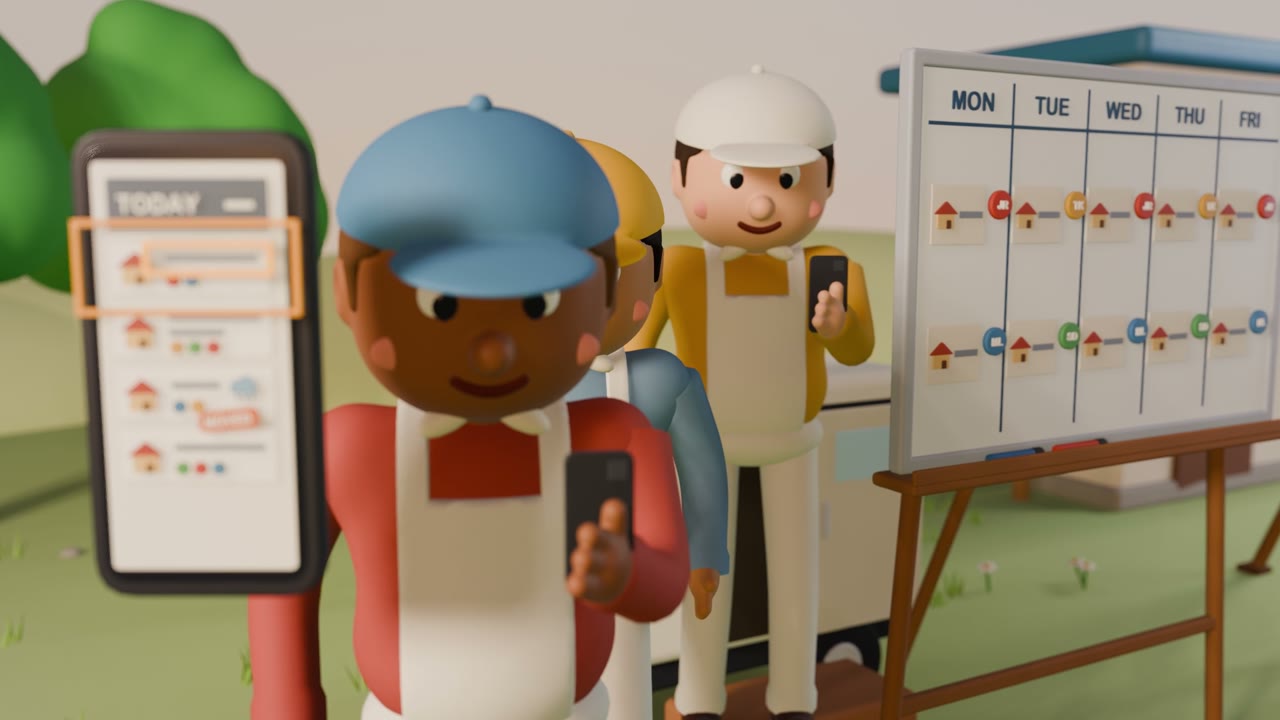
For the crew lead, the test is:
Open the page at phone size and compare it to my screenshot. Every address has to fit. Then check a rain day, and a two-day job. Show me a screenshot of each.
In the app, Claude Code can open what it built in a browser right beside the chat. It looks at the page, finds an address still running off the edge, fixes it, and looks again. That's the screenshot from tip seven: the thing you'd check yourself, written down, so Claude Code checks it before you ever see it.
Ask for proof
Not just "done". A screenshot of the result tells you more than a promise.
Make it a habit
Put your usual checks in the notes file, and it does them every time.
Anthropic's guide puts it simply: "It's the difference between a session you watch and one you walk away from."
The browser beside the chat is the app's Browser pane: click Browser in the session's title bar, or press Cmd+Shift+B (Ctrl+Shift+B on Windows). It's a clean browser, with none of your saved logins.
Get the free cheat sheet: all ten tips, and every request the crew lead typedWhere it stops
These ten tips will take you a long way with tools for you and your team: a schedule, a quote calculator, a weekly report.
It shares your plan
Claude Code and the chat draw from one pool: a five-hour limit and a weekly limit, with no fixed message count. You can see where you stand in Settings, then Usage.
There's a line
When a tool starts holding customers' private details, or taking payments, or running all day for lots of people, it needs more than good habits. It needs someone thinking about security, backups, and what happens when something breaks on a Saturday. That's the time to bring in an engineer.
The cheat sheet: ten tips for Claude Code
All ten tips, one line each, with what to do in the Claude app, and every request the crew lead typed, ready to copy, on one page. Print it, or keep this page open.
The ten tips
Tick each one off as it becomes a habit.
Every request the crew lead typed
Copy them, then swap in your own jobs, your own crew and your own rules.
A page my four painters check on their phones each morning. Today's job, the address, and who's on it. Like the whiteboard in the photo.
Create a CLAUDE.md with instructions for this project.
We're a four-person painting company. Crews start at seven. Nobody works Sundays. Keep everything simple enough to read on a phone.
Add this to the notes file.
Before you start, interview me. Ask me anything you need to know.
The addresses are cut off on my phone, like this.
Undo that.
Save how we just did this as a skill, called next week's schedule.
Open the page at phone size and compare it to my screenshot. Every address has to fit. Then check a rain day, and a two-day job. Show me a screenshot of each.
The docs
Anthropic's own pages, for the setup and for each tip.
Sources
Where the facts in the episode come from, checked in October 2026. The docs for each tip are in the cheat sheet above.
Ready for more than good habits?
That's what Benmore's forward deployed engineers do. They build inside your business: they find the work worth automating, and they build it with AI, properly.
Talk to Benmore